Configuring Rapid Recovery
NAVIGATION Policies > Ransomware Detection
PERMISSIONS Administrator role
Overview
Ransomware recovery depends on knowing what files changed during an attack. Continuously tracking every file change provides this information but consumes CPU, disk activity, and storage on every endpoint, even when no attack occurs. Rapid Recovery provides a more efficient approach, reducing this overhead while maintaining recovery capabilities.
Rapid Recovery is a File Recovery option in a Datto EDR ransomware policy. It keeps everyday resource use low by running in a monitoring mode that does not record file history. When Datto EDR's ransomware detection sees early signs of an attack, Rapid Recovery switches to full tracking automatically — recording every file operation across the whole disk. When the suspicious activity stops, it returns to monitoring mode. No manual action is required.
The key trade-off: the record begins when Rapid Recovery switches to full tracking. There is no file history before that point. If you need a complete record at all times, choose Full Disk Tracking instead.
IMPORTANT Not the same as Datto BCDR Rapid Rollback. Datto BCDR has a separate feature called Rapid Rollback. The names are similar, but the two features belong to different products, work differently, and are set up in different places. See Rapid Recovery vs. Datto BCDR Rapid Rollback below.
How Rapid Recovery works
Rapid Recovery operates in three stages automatically, without any user action required.
- Stage 1 - Everyday use: Rollback runs in a low-overhead monitoring mode that supports detection. No file history is recorded.
- Stage 2 - When an attack looks likely: When Datto EDR's ransomware detection sees signs of a possible attack, Rapid Recovery switches to full tracking automatically and starts recording file changes across the whole disk.
- Stage 3 - Back to normal: After a short period, once the suspicious activity has stopped, Rollback returns to monitoring mode. If the activity continues, the recording is extended.
If an attack is confirmed, the history recorded during the step-up is used by Datto EDR to restore the affected files.
NOTE Rapid Recovery uses the same low-overhead Rollback service already running under Enhanced detection. Enabling it does not install any additional components. Use Rapid Recovery with the Enhanced detection option.
Rapid Recovery vs. Datto BCDR Rapid Rollback
Datto EDR Rapid Recovery and Datto BCDR Rapid Rollback share similar names but are unrelated features in separate products. The table below shows the key differences.
| Characteristics | Datto EDR: Rapid Recovery | Datto BCDR: Rapid Rollback |
|---|---|---|
| Product | Datto EDR. | Datto BCDR, part of the Datto Utilities tool suite. |
| What it is | A File Recovery option in a ransomware policy. It decides when the endpoint records file changes. | A restore tool. It reverts a Windows machine's file system to a chosen recovery point, without reformatting or re-partitioning the hardware. |
| When it acts | Automatically, when ransomware detection sees signs of an attack. | When you run it, after an incident. You start the machine from a USB stick prepared with Datto Utilities. |
| Where the data comes from | File history recorded on the endpoint by Datto EDR's Rollback component. | Backups (recovery points) held on a Datto appliance. |
| Where you set it up | The File Recovery settings of a Datto EDR ransomware policy. | Datto Utilities, with the Datto appliance that holds the backups. |
| Effect on the system | None you need to manage. It starts and stops recording on its own. | It changes the production machine's files: deleted files come back, modified files revert, and files created after the recovery point are removed. A rollback cannot be stopped or undone once it starts. |
For information about Datto BCDR Rapid Rollback, see the Datto BCDR help center.
Enhanced Ransomware Detection
With enhanced detection, the Datto Rollback service runs in a low-overhead monitoring mode. It does not keep file history. It passes information to the detection engine so that detection can identify which process is changing which files. Rapid Recovery adds one capability on top: when detection sees signs of an attack, it also starts recording file changes, so there is a history to restore from. Turning on Rapid Recovery does not install anything extra, because Enhanced detection already deploys the same Rollback service. For details about enhanced ransomware detection and its features, see Working with Enhanced Ransomware Detection.
File Recovery options
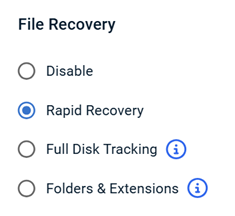
Rapid Recovery is one of four File Recovery options. The following table summarizes each option.
- Disable: Select to prevent file recovery (rollback) on endpoints monitored by your ransomware policy. No file history is kept, and rollback is not available. Note: If Enhanced ransomware detection is enabled, Datto Rollback components are still deployed to monitored endpoints and operate in a low-overhead monitoring mode that supports enhanced detection.
- Rapid Recovery: Select to deploy the Rollback agent and Rollback Driver Desktop application to all endpoints monitored by the ransomware policy. Rollback runs in a low-overhead monitoring mode that supports Enhanced ransomware detection without tracking file changes or maintaining file history. When EDR detects early signs of an attack, Rapid Recovery automatically begins full tracking, recording all file operations across the disk until the suspicious activity stops or a ransomware attack is confirmed.
- Full Disk Tracking: Select to deploy the rollback agent and Rollback Driver Desktop application to all endpoints monitored by your ransomware policy and track file changes across the disk.
- Folders & Extensions: Select to deploy the rollback agent and Rollback Driver Desktop application to all endpoints monitored by your ransomware policy. In this configuration, the rollback agent only tracks changes for the folders and file extension types you define.
NOTE For more information and guidance on choosing a File Recovery option, see File Recovery options in the article Understanding Datto EDR's Ransomware Detection.
Resource impact
In everyday use Rapid Recovery does not track file changes, so it is designed to be much lighter than Full Disk Tracking. Actual resource use depends on the endpoint's hardware and workload. A short pilot before a wide rollout is recommended.
NOTE Datto may share measured performance figures as testing is completed. Check the knowledge base for updates.
| Resource | What to expect |
|---|---|
| CPU and memory | In everyday use, similar to Enhanced detection with File Recovery disabled. During full tracking, usage temporarily rises towards the level of Full Disk Tracking, then returns to normal. |
| Disk activity | Low in everyday use. Higher during full tracking, because file changes are being recorded. Those periods are short. |
| Disk space | Space for file history is used only while full tracking is recording, and is limited by your Cache Configuration settings. |
| Enhanced detection | Enhanced detection already runs a low-overhead Rollback service, and Rapid Recovery uses it. If minimizing resource use is critical on an endpoint, Standard detection uses less, but without process-level detail. |
| User experience | Designed to run in the background. Users should not notice it, and there are no prompts or actions for end users to take. |
Troubleshooting
Ransomware detection does not depend on Rapid Recovery. Detection and response (Kill Process, Isolate Host, and so on) keep running regardless. What changes is whether there is a record to restore from.
IMPORTANT If you are not sure whether an endpoint is protected as intended, contact Kaseya Support. They can confirm the status from the endpoint's logs.
| Situation | What it means for protection | What to do |
|---|---|---|
| File Recovery is set to Disable. | No file history is kept and files cannot be restored. | Choose Rapid Recovery, Folders & Extensions, or Full Disk Tracking. |
| File Recovery is set to Full Disk Tracking or Folders & Extensions. | Rapid Recovery is not in use. These options record in full detail all the time instead. This is expected. | No action needed. Choose Rapid Recovery if you want it. |
| Rollback is not installed or is not running on the endpoint (for example, installation was blocked on that device). | Detection still works, but there is no file history, and Enhanced detection loses its process-level detail. | Confirm Enhanced detection and File Recovery are set in the policy and allow time for installation. If Rollback does not start, contact Kaseya Support. |
| The Datto Rollback component on the endpoint is out of date. | Rapid Recovery is not available on that endpoint, so there is no automatic switch to full tracking. | Make sure the Datto EDR agent is up to date so the component can update. Contact Kaseya Support if it does not update. |
| The policy applied to the endpoint does not have Rapid Recovery selected. | The endpoint follows the File Recovery option that is set in its policy. | Check which policy applies to the endpoint. |
| The switch to full tracking did not happen, or happened too late, for a particular attack. | There is no file history for the early part of that event. Detection and response still run. | Contact Kaseya Support if you see this repeatedly. For critical systems, use Full Disk Tracking, which does not depend on a switch. |
IMPORTANT Rapid Recovery relies on full tracking being switched on in time. For systems where you cannot accept any gap in the record, use Full Disk Tracking, which records the whole disk continuously.
How to...
 Enable Rapid Recovery
To enable Rapid Recovery on a group of endpoints, complete the following steps:
- Pick a small pilot group of endpoints.
- Open the ransomware policy applied to that group.
- Set the detection option to Enhanced. New policies default to Enhanced.
- Under File Recovery, select Rapid Recovery.
- Review the Cache Configuration settings — Maximum Tracking History and Cache Size — and adjust them to suit the free disk space on your endpoints. Leave headroom, because full tracking records changes across the whole disk.
For more information, see Cache configuration options in the article Understanding Datto EDR's Ransomware Detection. - Save and publish the policy.
- Allow time for the agent to apply the setting and for the Rollback component to update if needed.
- Watch resource use for a few days using your existing monitoring tools, comparing before and after. Then roll out to additional endpoints.
NOTE If you see frequent switches to full tracking on a particular endpoint, a legitimate tool may be behaving in a way that resembles an attack. Contact Kaseya Support so they can investigate.
Test Rapid Recovery
BEFORE YOU BEGIN Use a disposable test device only — a virtual machine with a snapshot taken first is strongly recommended. Never run this test on a production endpoint. The simulation changes the sample files it creates, and if Isolation is turned on in the policy, the device is cut off from the network until you restore access.
You can verify that Rapid Recovery works using a controlled simulation. A test script runs a simulated ransomware attack against sample files on a test device. Datto EDR should detect it, stop it, and raise an alert. You then restore the sample files with Rollback and confirm they are back.
What you need
- A Windows test device (Windows 10 or later, or a current Windows Server) with administrator rights.
- The Datto Endpoint Security agent installed and running on the device.
- A ransomware policy applied to the device with Enhanced detection and File Recovery set to Rapid Recovery.
- Windows Defender and Datto AV paused for the test, or the folder
C:\KB4excluded, so they do not block the simulator. - Ransomware detection turned off in Datto RMM or RocketCyber for this device, if you use them, so only Datto EDR responds.
- Internet access to download the files in Step 3 and Step 4 below.
To test Rapid Recovery, complete the following steps:
- Set up the policy: Apply the ransomware policy described above to the test device. Leave Kill Process on — that is how you will see Datto EDR stop the simulation. Turn Isolate Host on only if you want to test isolation. After changing a policy, restart the agent on the test device so it picks up the change.
- Create the test folder: Create the folder
C:\AutoRS2. Everything in the next two steps goes here. - Download the simulation package and script: From Datto Workplace, download simulation package and script, and extract into
C:\AutoRS2. The folder should contain the script and adatafolder of sample files. - Download the KnowBe4 RanSim installer — do not install it: Datto does not distribute RanSim, so download it yourself from KnowBe4. On the RanSim page, choose "I want my RanSim download" and complete any steps KnowBe4 asks for. Save the installer as
SimulatorSetup.exeinC:\AutoRS2, next to the script. Do not run it — the script installs RanSim in the right place for you. - Note your current execution policy so you can restore it afterwards: Open PowerShell as administrator and run
Get-ExecutionPolicy. - Run the script:
Go toC:\AutoRS2, and run:Set-ExecutionPolicy Unrestricted.\<script file name>.ps1
The script checks the agent, ransomware detection, and Rollback, installs RanSim, copies the sample files, and then waits three minutes so the files are not treated as brand new. It then shows a checklist and asks you to press a key. After that it runs without further prompts — do not interrupt it. - Watch the simulation being stopped. The script opens the sample files folder in Explorer so you can watch the files being renamed. Datto EDR should detect the simulation, end it with Kill Process, and raise an alert under Alerts. The script window may close when this happens — that is expected. If Isolate Host is on, the device is also isolated at this point.
- Restore the files. In Datto EDR, open the ransomware alert for the test device and run the Rollback response. A rollback from the alert may restore only some of the files. To restore all of the files, open Rollback Driver Desktop on the test device and restore from there. Then check the sample files folder: the original file names should be back and the encrypted copies should be gone.
NOTE An isolated device can still communicate with Datto EDR. To restore its network access after testing, run the Host Isolation Restore extension from the Alerts page.
If the test does not behave as expected
- No alert, or the simulator will not start: Antivirus is the usual cause. Pause or exclude it, delete
C:\KB4, and run the script again. - The policy change did not seem to apply: Restart the agent on the test device and confirm the device has the right policy.
- Few or no files could be restored: Make sure File Recovery is set to Rapid Recovery, and use Rollback Driver Desktop to restore all files rather than relying on the rollback from the alert alone. Files that changed before Rapid Recovery started recording cannot be restored.
If you believe Rapid Recovery did not work as described, collect the device logs with Fetch Logs (Organizations > Devices, then the ellipsis menu for the device) and contact Kaseya Support.
Clean up after testing
- Restore the device's network access if it was isolated.
- Turn antivirus back on, and restore the PowerShell execution policy to the value you noted before the test.
- Uninstall KnowBe4 RanSim if it is listed under installed apps, then delete
C:\KB4andC:\AutoRS2. - Set the policy back to your normal settings. Revert the snapshot or delete the virtual machine.
IMPORTANT The simulation is for demonstration only and should never be left on an endpoint afterwards.
FAQ
Is this the same as Rapid Rollback in Datto BCDR?
No. They are separate features in separate products, with separate settings.
See the Rapid Recovery vs. Datto BCDR Rapid Rollback section above for a full comparison, and the Datto BCDR help center for information about Datto BCDR Rapid Rollback.
Does Rapid Recovery replace my backups?
No. Rapid Recovery is one layer of defense and is not a substitute for a regular backup and disaster-recovery plan.
Always maintain a regular backup and disaster-recovery plan alongside it.
Will my users notice anything?
No. Rapid Recovery is designed to run in the background and requires no action from end users.
There are no prompts, notifications, or user-facing actions during everyday use or during full tracking.
Will it recover every file after an attack?
Not necessarily. Results depend on the type of attack, how early it was detected, and the condition of the endpoint.
The record starts when full tracking starts, so files changed before that point are not in the history. Rapid Recovery is designed to improve recovery chances, not guarantee complete recovery. For systems where you cannot accept any gap, use Full Disk Tracking.
Why not track everything all the time?
Continuous full tracking costs CPU, disk activity, and disk space on every endpoint. Rapid Recovery avoids that cost in everyday use and records only when an attack looks likely.
If you would rather always have history available, choose Full Disk Tracking or Folders & Extensions.
Does it protect against attacks launched from another computer?
Yes. Datto EDR's ransomware detection looks for the attack itself as well as early warning signs, so it is designed to respond even when an attack arrives without prior warning on the endpoint.
If the detection triggers a switch to full tracking, Rapid Recovery begins recording file history on the endpoint at that point.
How can I test Rapid Recovery?
See the section "Test Rapid Recovery" in this article.
It uses a test script and a simulated attack on a disposable test device.
Can I choose what triggers full tracking?
No. Triggers are managed by Datto and updated through product releases.
The specific signals, thresholds, and timings that decide when full tracking starts are not published, because that detail would also help attackers avoid detection. Detection criteria improve through product updates and do not require any configuration on your part.
Can I turn it off?
Yes. Select a different File Recovery option in the policy.
Where can I get help?
Contact Kaseya Support or your Kaseya account representative.
Kaseya Support can confirm endpoint protection status from the endpoint's logs, investigate repeated switches to full tracking, and help with rollout or testing questions.
| Revision | Date |
|---|---|
|
Initial release. |
10/22/26 |


