Working with Ransomware Rollback
NAVIGATION Policies
PERMISSIONS Datto EDR subscription with administrator, analyst, or external analyst-level platform access
PERMISSIONS Service account or administrator-level rights on the target endpoint
Ransomware Rollback is a lightweight, efficient system that monitors changes to endpoint disk space and provides rollback functionality for files impacted by ransomware.
It leverages agent software installed on your protected endpoints to track file changes in the background silently, and a desktop application for monitoring and managing the rollback process. The solution works in tandem with Datto EDR’s ransomware detection engine to protect documents and databases targeted by ransomware attacks.
This topic explores the Ransomware Rollback feature and answers questions frequently asked by our partners. For information about our ransomware detection feature, refer to Understanding Datto EDR's Ransomware Detection.
BEFORE YOU BEGIN If Ransomware Rollback is unavailable in your EDR instance, please contact Technical Support to enable it.
Overview
 Technical benefits
- Quick and efficient recovery: Ransomware Rollback swiftly restores files to their original state, minimizing downtime and enabling users to regain access to their documents.
- Lightweight and non-intrusive: The application operates seamlessly in the background without causing noticeable performance degradation or disruptions to daily operations.
- Custom minifilter driver for enhanced protection: By using a custom minifilter driver, Ransomware Rollback avoids reliance on Windows Shadow Copy, which is often targeted by ransomware attacks, ensuring a higher level of protection.
- Comprehensive ransomware detection: Our integrated ransomware detection feature enables the solution to work in tandem with the rollback mechanism for maximum effectiveness. The Rollback service also powers Enhanced Ransomware Detection. Refer to Working with Enhanced Ransomware Detection.
- Scalability: This solution is suitable for businesses of all sizes, ensuring that data remains protected no matter the scale of the organization.
- Robust file deletion handling: The handling of file deletions, through the creation of hard links in a tracking directory, ensures that users can quickly restore deleted files, even in the case of accidental removal.
- Application compatibility: Ransomware Rollback works with most host-based applications, including simpler file-based database applications such as QuickBooks and SQLite. Live files of complex database engines are deliberately not tracked. Refer to "How does this solution handle database applications...?" in the FAQs.
Business benefits
- Minimize downtime: Quickly recover from ransomware attacks, reducing the impact on productivity for your organization.
- Enhance business continuity: By enabling the rollback of critical files, our solution helps maintain business continuity, ensuring that essential operations can continue even in the face of a ransomware attack.
- Save costs: Recovering from ransomware attacks can be expensive, involving not only the potential ransom payment but also the costs of data recovery and IT support. Ransomware Rollback can help mitigate these expenses by streamlining the recovery process.
- Improve your security posture: Adding rollback functionality to your endpoint protection provides an additional layer of protection to your existing security measures, bolstering your organization's overall security posture and resilience against ransomware threats.
- Simplify the recovery process: Ransomware Rollback enables you to perform targeted rollbacks based on specific ransomware processes or time frames, making the recovery process more straightforward and efficient.
- Integrate with ease: Our solution works seamlessly with supported Windows client and server operating systems. It also integrates with the EDR portal, ensuring easy adoption and implementation for a wide range of businesses.
- Customize resource allocation: Because you can adjust disk space allocation for the ransomware rollback driver, you can tailor the solution to your specific needs, optimizing resource usage and efficiency.
- Feel confident: Knowing that your organization has an additional layer of protection against ransomware attacks provides peace of mind and a sense of security, enabling you to focus on your core business operations.
Compatibility
Ransomware Rollback is supported on Windows 10 and above and Windows Server 2012 and above, on x64, x86, and ARM64 architectures. Operating system support is the same for Enhanced Ransomware Detection and full (File Recovery) monitoring.
Ransomware Rollback is not recommended for systems that generate significant disk I/O or perform intensive storage operations, as these workloads may experience performance impacts. Examples include database servers, domain controllers, Microsoft Exchange servers, Active Directory servers, and other application servers with high storage demands. This list is not exhaustive. The absence of a specific workload or server role should not be interpreted as a recommendation or endorsement for deployment.
For more information, see Hardware and operating system requirements.
NOTE Ransomware Rollback does not track changes on virtual disk images or virtual machine state files, including Hyper-V, and VirtualBox image formats (AVHDX, AVHD, VHD, VHDX, VDI, VMRS, VMCX, VMGS). USB-attached drives and FAT32-formatted volumes are also not tracked, even if Windows reports them as fixed drives.
Getting started
To use Ransomware Rollback, install the rollback agent on all endpoints you'd like to protect and ensure that they're being monitored by your Datto EDR ransomware policy. When a ransomware alert occurs, use the Rollback Driver Desktop application on the affected endpoint to investigate, triage, and remediate the attack. You can also initiate file rollback directly from the Alert Detail page (described in the section Responding to ransomware alerts).
Perform the following steps to set up the agent and protect your endpoints.
Prerequisites
Before you can start protecting your endpoints with Ransomware Rollback, your environment must meet the following criteria:
- You must have an active Datto EDR subscription.
- The Datto Endpoint Security agent must be installed on all endpoints you wish to monitor, and those devices must be able to communicate with your EDR instance.
- Ransomware detection must be enabled and configured. For more information, refer to Ransomware configuration options.
Configuring your ransomware policy and installing the agent
Procedure
To deploy the rollback agent and Rollback Driver Desktop application to your monitored endpoints, you'll need to enable a File Recovery option in your ransomware policy. Perform the following steps to do so.
IMPORTANT If your endpoint requires managed reboots or must adhere to specific update policies, refer to the Managing Ransomware Rollback installation and updates section of this article for important information.
-
Navigate to the Policies page and locate your ransomware policy. Ensure that it is enabled. To learn how to do so, refer to Working with the Policies page.
-
Click the name of your ransomware policy to open its Edit Policy page.
-
Review the Details, Detection, and Response sections of the page. Make any configuration changes necessary. For feature definitions, refer to Ransomware monitoring options.
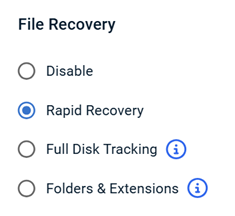
- Scroll down to File Recovery and click one of the options: Rapid Recovery, Full Disk TrackingORFolders & Extensions to activate Ransomware Rollback.
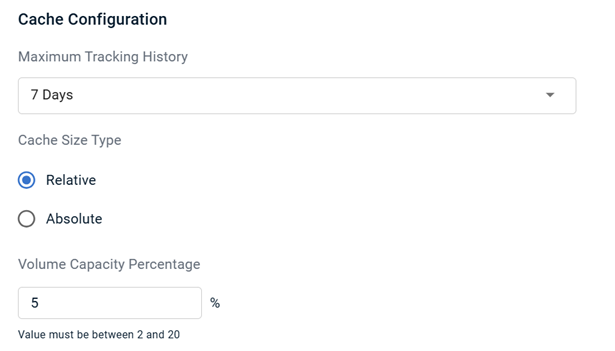
- Make any desired customizations to the cache configuration of the rollback agent. Review File Recovery options for details about the available options.
-
Once you've finished configuring your ransomware policy, click Save.
-
To verify that the rollback agent has successfully deployed to your endpoints, log into any protected system and check for the Rollback Desktop application in the Windows Start Menu (under the Datto folder) and in the Apps section of the Settings control panel.
NOTE New ransomware policies default to the Enhanced detection setting instead of Standard, providing stronger protection out of the box. This applies to all new tenants and newly created policies. The rollback agent components are deployed even when File Recovery is set to Disable. In this configuration, the agent runs in a low-overhead monitoring mode that powers Enhanced Ransomware Detection. No file history is kept and file recovery is not available. Refer to Working with Enhanced Ransomware Detection.
Agent components
During the installation of the rollback agent, the following components are added to each protected system:
- Kernel minifilter driver (cbfilter24.sys)
-
Datto Rollback Driver Service (Windows service)
-
Datto Rollback Status, Datto Rollback Updater, and Datto Rollback Autorepair scheduled tasks (in the Datto\Datto Rollback Driver task folder)
-
Rollback Driver Desktop application and Start Menu shortcut (Rollback Desktop, under the Datto folder)
-
Program files at %ProgramFiles%\Datto\Datto Rollback Driver and logs at %SYSTEMDRIVE%\ProgramData\Datto\Datto Rollback Driver\Logs
-
Cache folder at %SYSTEMDRIVE%\$.td and in the root directory of any additional tracked volumes
These resources are critical to the monitoring and protection of the endpoint's file system. The cache folder is hidden and protected by the driver. It cannot be opened or modified directly, including by administrators.
Rollback Driver Desktop features
The rollback agent and its management application must be installed on all endpoints that you'd like to be able to restore. Once you've installed them, a link to the Rollback Driver Desktop application will become available in the Windows Start Menu. When you launch the program, you'll see the following features and fields.
| Header menu | |
|---|---|
| Feature | Definition |
|
Drive |
Volume filter; shows the alerts, history, and recovery options for each logical drive on the endpoint |

|
Refresh the current view |

|
Application is functioning without issue and connected to rollback system service |

|
Show Rollback Driver Desktop version information |
| Ransomware Alert tab | |
|---|---|
|
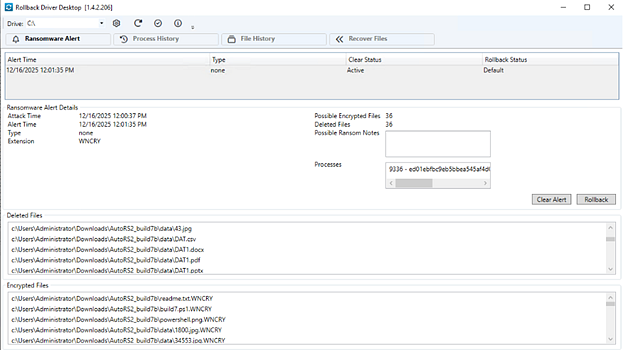
The Ransomware Alert tab enumerates all ransomware alerts generated for the endpoint and at-a-glance details about each notification. It also enables you to restore all files impacted in the selected alert with a single click. |
|
| Field or feature | Definition |
| Alert Time |
The local date and time that the alert was generated; corresponds to the date and time settings on the endpoint. |
| Type |
The type of attack, if identifiable by EDR's ransomware detection; will show values such as “lockbitblack,” “makop,” “zeppelin,” and so on. If the family cannot be identified, no type is shown. Detection does not depend on identifying the family. |
| Clear Status |
Indicates whether the alert has been acknowledged by a system administrator |
| Rollback Status |
Reports whether a rollback has been performed on this alert; possible values are Default or Rolled back. |
| Ransomware Alert Details |
General information about the ransomware alert; includes the local time of the attack, local time of the alert, the type of alert, malicious extension detected, count of encrypted and deleted files, any ransom notes included in the attack, and the processes that triggered the alert. Counts of encrypted and deleted files are a snapshot at alert time and may continue to grow while an attack is in progress. |
| Clear Alert |
Acknowledges the selected alert |
| Rollback |
Click to automatically revert or restore all encrypted and deleted files for the selected alert and volume |
| Deleted Files |
All files deleted from the selected volume during the ransomware attack |
| Encrypted Files |
All files encrypted on the selected volume during the ransomware attack |
| Process History tab | |
|---|---|
|
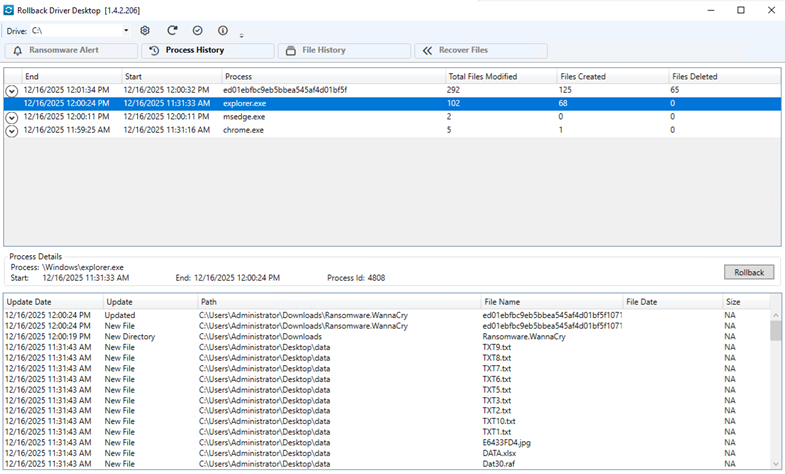
On the Process History tab, you can view all of the processes that ran on the endpoint, the files modified, created, and deleted on the current volume by each. You can also roll back individual actions taken by the processes. |
|
| Field or feature | Definition |
| End |
Local date and time that the process terminated |
| Start |
Local date and time that the process began |
| Process |
Name of the process |
| Total Files Modified |
Count of all files modified by the process |
| Files Created |
Total number of files created by the process |
| Files Deleted |
Count of all files deleted by the process |
| Process Details |
Granular information about the selected process; includes the process name, start and end times, and process ID; click Rollback to undo the changes made by the process |
| Update Date |
Local date and time that the file was updated by the selected process |
| Update |
Type of update made to the file by the process |
| Path |
Path to the impacted file |
| File Name |
Name of the impacted file |
| File Date |
Date of the file's creation |
| Size |
Size of the file |
| File History tab | |
|---|---|
|
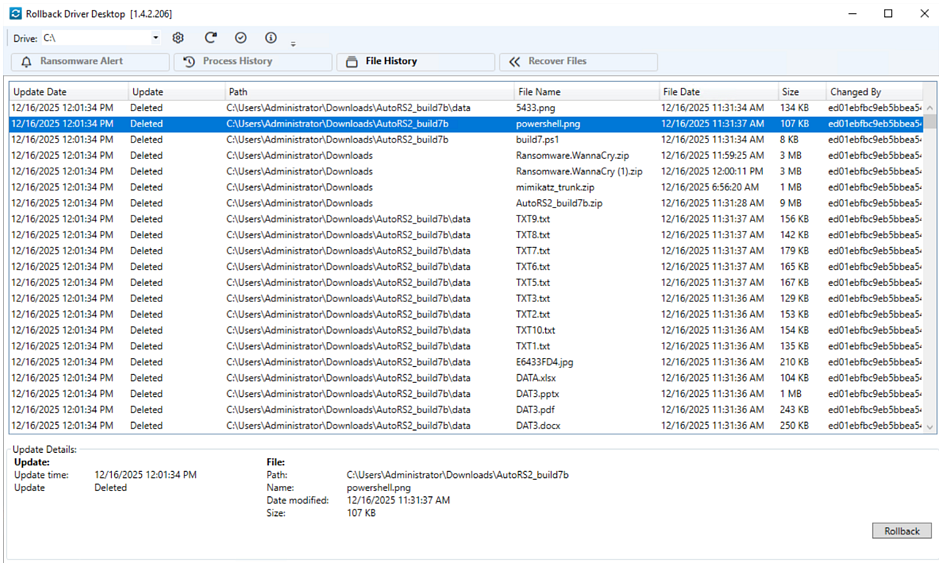
The File History tab provides a complete journal of the changes tracked on the volume during the selected monitoring period, ordered oldest to latest. From here, you can roll back any recorded change from the latest to your desired point in the past. All changes that took place between the file's current state to the restore point you chose will also be rolled back. |
|
| Field or feature | Definition |
| Update Date |
Local date and time that the file was updated by the selected process |
| Update |
Type of update made to the file by the process |
| Path |
Path to the impacted file |
| File Name |
Name of the impacted file |
| File Date |
Last date the file was updated before the alert |
| Size |
Size of the file |
| Changed By |
Name of the process that caused the change |
| Update Details |
Consolidated information about the changes made to the selected file; click Rollback to undo those changes |
| Recover Files tab | |
|---|---|
|
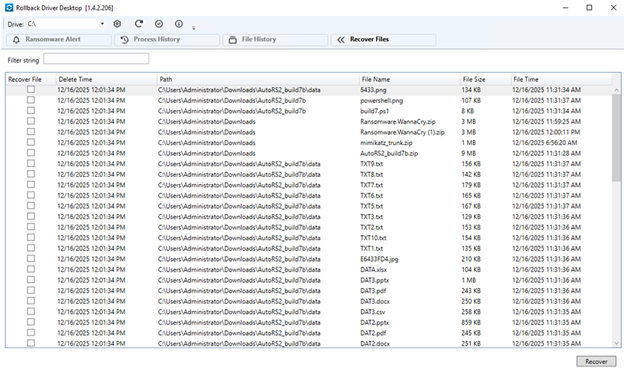
On the Recover Files tab, you'll find a list of all files deleted from the current volume during the time of the selected alert. From here, you can flag individual files for restoration to their original locations. |
|
| Field or feature | Definition |
| Recover File |
Click to mark this file for recovery |
| Delete Time |
Local date and time that the file was deleted |
| Path |
Path to the impacted file |
| File Name |
Name of the impacted file |
| File Size |
Size of the file |
| File Time |
Last time the file was updated prior to the alert |
| Recover |
Click to restore the selected files |
 Managing Ransomware Rollback installation and updates
Overview
We are continuously improving the Datto Rollback agent and Rollback Driver Desktop application. It will automatically update when a new release is available. You do not need to take any action to keep the endpoint software current. However, should you wish to manage the delivery of these updates, the following sections of this article will assist you in doing so.
Update types
Ransomware Rollback integrates deep within the Windows kernel. We may occasionally release updates that require a system reboot to complete the installation. We classify our updates as minor and major.
Minor updates are for bug fixes, performance updates, and other infrastructure enhancements that are part of the continuous improvement cycle of the solution. On average, we will release a minor update every four to eight weeks. Minor updates are silent, always installed, and happen in the background without any pop-ups or visible effect on screen.
Major updates may require a reboot of the host for the installation to finalize, because the underlying kernel minifilter driver cannot be replaced while it is loaded. Any update that will require a reboot will be announced in your Datto EDR instance at least one month in advance to enable you to schedule appropriate maintenance windows. Normally, we only release one major update per year. When a reboot is required to finalize a driver update, the update is deferred and completes at the endpoint's next restart. Rebooting during your normal maintenance window is recommended.
Major updates are installed if the following conditions are met:
-
The
HKEY_LOCAL_MACHINE\SOFTWARE\Datto\DisableRollbackReboot = TRUEWindows Registry value is not set; or... -
The
--forceupdatecommand line switch is specified when running the updater.
When minor and major updates take place, the Datto Rollback Driver Service restarts.
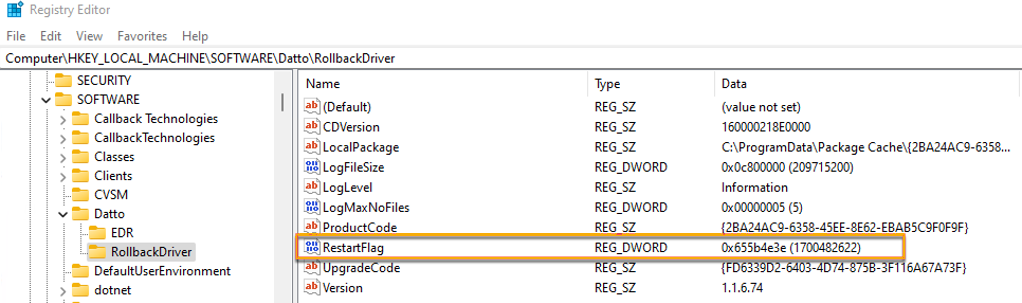
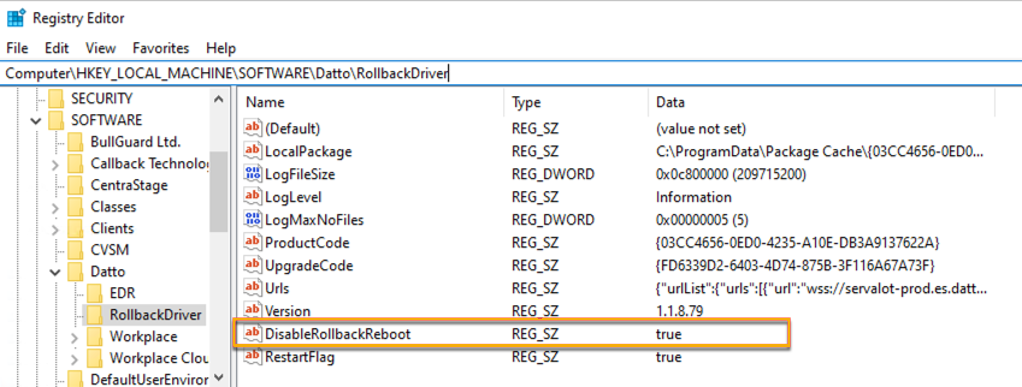
When an update requires a reboot to finalize, the updater creates a RestartFlag value under HKEY_LOCAL_MACHINE\SOFTWARE\Datto\RollbackDriver in the endpoint's Windows Registry. The value records the time the reboot was requested and is cleared automatically once the reboot completes.
Datto Rollback Updater scheduled task
Datto Rollback uses the Datto Rollback Updater scheduled task, which runs every three hours, to check for and download updates. The updater utility resides on protected endpoints at %\ProgramFiles%\Datto\Datto Rollback Driver\updater.exe.
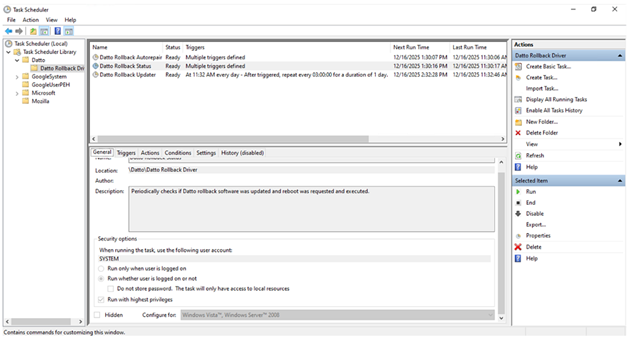
IMPORTANT If you disable this task, be sure to run Ransomware Rollback's updater.exe during your scheduled maintenance window to ensure that the latest patches and fixes are applied.
As described in the previous section of this article, the Datto Rollback Updater will set the RestartFlag Windows Registry value if it determines that a reboot is
required to finalize an update. If you are updating during a service window, the presence of the flag enables you to know whether a reboot is actually required. Once the reboot completes, the RestartFlag clears.
Controlling Ransomware Rollback installation
If you do not want Ransomware Rollback installed on certain devices, you can avoid installation by creating a string value named DisableRollbackInstall within \HKEY_LOCAL_MACHINE\SOFTWARE\Datto\EDR in the registry and setting its value to 1. This also applies to endpoints monitored by a policy with the Enhanced detection option enabled.
If Ransomware Rollback has been installed on a device and you need to uninstall it while the policy is enabled, insert the value as instructed. This value also blocks automatic reinstallation.
Datto AV and EDR Tamper Protection settings determine whether the DisableRollbackInstall registry string can be created, as described below.
- Datto AV installed + EDR Tamper Protection is ON: Cannot create the
DisableRollbackInstallregistry string. - Datto AV Installed + EDR Tamper Protection is OFF: Able to create the
DisableRollbackInstallregistry string. - Datto AV Not Installed + EDR Tamper Protection is ON: Able to create the
DisableRollbackInstallregistry string.
Controlling major Ransomware Rollback updates
If you'd like to prevent Datto EDR from installing major Ransomware Rollback updates while allowing minor updates to be applied, perform the following steps:
-
Set the following Windows Registry string value on the applicable endpoint:
\HKEY_LOCAL_MACHINE\SOFTWARE\Datto\DisableRollbackReboot=TRUE. Doing so instructs updater.exe to skip major updates. Minor updates will continue to install. -
Reboot the system to ensure that the registry change takes effect.
Controlling all Ransomware Rollback updates
If you'd like to prevent Datto EDR from installing any Ransomware Rollback updates on a system until you're ready to do so, perform the following steps on the applicable endpoint:
-
Disable the Windows scheduled task called Datto Rollback Updater (located in the Datto\Datto Rollback Driver task folder). Doing so prevents all automated updates.
-
During your service window, from an elevated Command Prompt or PowerShell session, run
updater.exe --forceupdate, which will download and install any available updates, minor and major, including major updates on systems where DisableRollbackReboot is set. -
At the end of your service window, reboot the endpoint to finalize the update if the RestartFlag registry value is present.
Responding to ransomware alerts
When you receive a ransomware alert, you can perform a file rollback directly from the Alert Detail page or by using the Rollback Driver Desktop application.
IMPORTANT Ransomware Rollback cannot roll back the entire system state. It is designed to facilitate the recovery of critical business files only. If your operating system has also been compromised by ransomware, you may need to leverage your BCDR solution to achieve full restoration.
In Datto EDR
-
Navigate to the Alerts page by clicking Alerts in the top navigation menu.
-
The page will load. Locate the ransomware alert to which you'd like to respond and click its name.
-
The Alert Detail page loads.
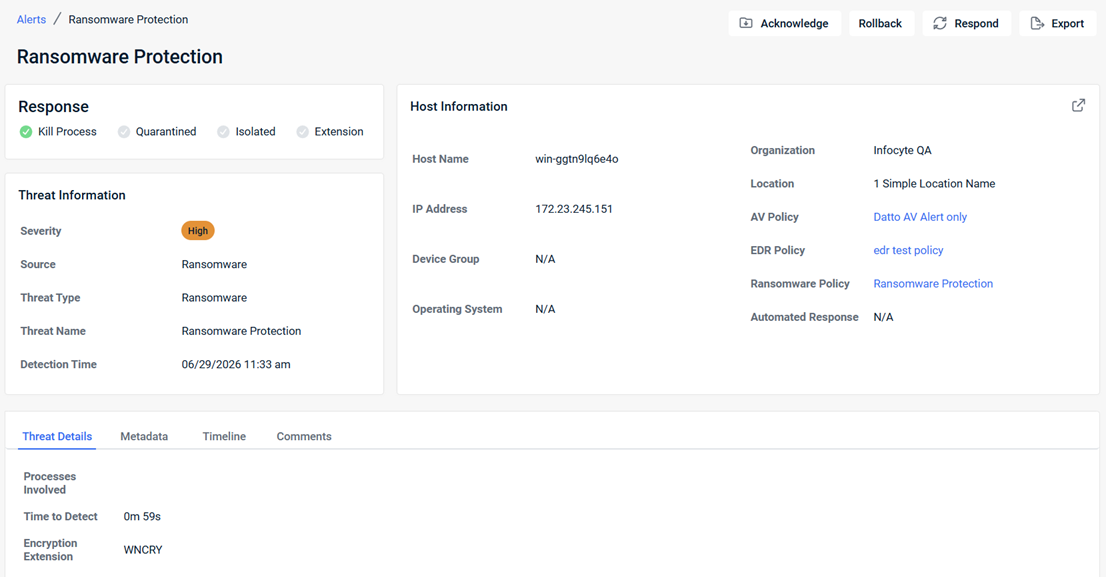
- To perform file rollback directly from the Alert Detail page:
- Click Rollback.
- In the Rollback dialog box, select one of the following options to recover and restore files:
- Recover to Original Files & Paths: (Selected by default). Restores all encrypted and deleted files for the selected alert to their original file paths.
- Recover defined path: Restores all encrypted and deleted files for the selected alert to the file path you specify.
- In the Rollback dialog box, click Rollback.
The system automatically logs a comment on the alert with the timestamp and initiating user to maintain auditability.
-
To perform file rollback using the Rollback Driver Desktop application, proceed to the next section of this article.
On the affected endpoint
-
Using an administrator-level account, log in to the endpoint with the host name you identified in the previous section of this article. If the machine has been isolated from the network and you need to access it remotely, you can do so from your Datto RMM platform.
-
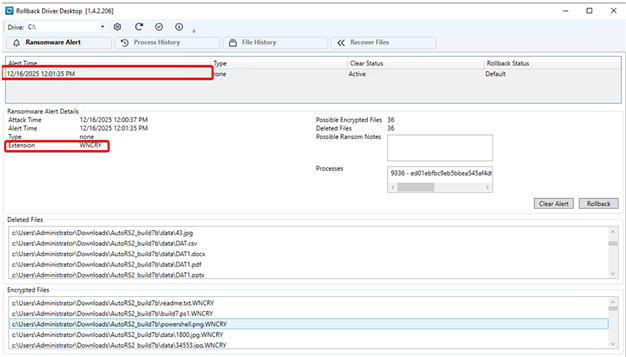
Launch the Rollback Driver Desktop application and navigate to the Ransomware Alert tab.
-
Click the alert that corresponds to the Alert Time value you recorded from Datto EDR.
-
Ensure that the Extension value shown in Rollback Driver Desktop matches the Extension value from Datto EDR.
-
Review the impact of the ransomware attack by using the information provided by each of the application's tabs. If you chose to protect multiple volumes on the endpoint, be sure to repeat the process for each logical drive shown in the Drive drop-down.
-
When you're ready to take corrective action, you can click the Rollback button on the Process History tab or the File History tab to undo all file-level changes identified in the alert.
-
Once you've recovered your lost or compromised files, copy all business-critical data on the machine to a backup appliance, removable media, or NAS share.
-
Re-image the endpoint if you suspect that it still contains remnants of ransomware.
-
Restore all business-critical files to the machine.
Sending feedback
Understanding your experience with Ransomware Rollback is critical to our continuous improvement. When contacting our team to provide feedback or to report a problem about a specific endpoint, be sure to include your device details. To do so, perform the following steps:
-
Launch the Rollback Driver Desktop application on the endpoint you'd like to discuss.
-
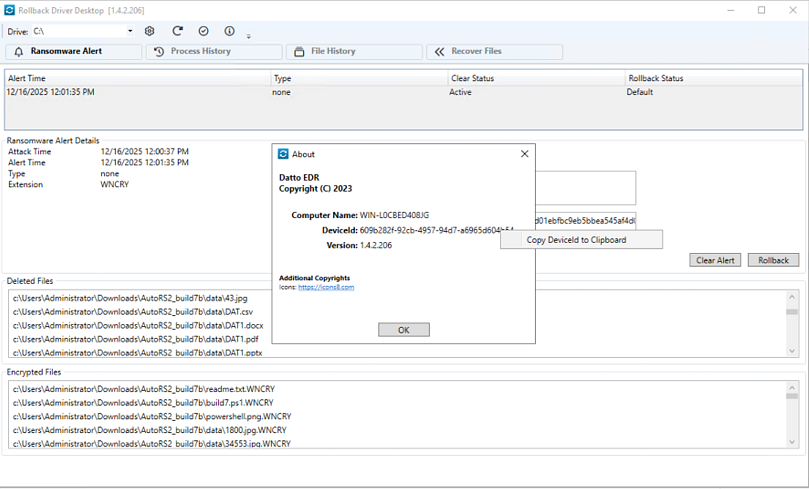
From the header menu, click the
icon. The About window will open. -
Right-click the value shown in the DeviceId field. Then, click Copy DeviceId to Clipboard.
-
Provide the copied information to your Datto Account Executive or Technical Support Expert so that we can best assist you.
FAQs
What is Ransomware Rollback?
Ransomware Rollback is a software agent that tracks changes made to files on a user's disk and provides a rollback mechanism to restore the original files if they become compromised by ransomware.
NOTE Ransomware Rollback does not track changes on virtual disk images, including Hyper-V, VirtualBox, and Windows hard disk image files, including AVHDX, AVHD, VHD, VHDX, and VDI.
How does Ransomware Rollback work?
Our solution intercepts file system calls made by applications and performs lightweight tracking of the changes made. It uses a custom minifilter inside Microsoft's file I/O stack in Windows, a system service for tracking changes and performing rollbacks, and a desktop application for user interaction.
Does Ransomware Rollback protect the entire system?
No, it focuses on tracking user documents rather than the entire system. It does not track changes to the Windows directory, Program Files, ProgramData, or per-user AppData folders.
Is Ransomware Rollback compatible with all host applications?
While Ransomware Rollback is compatible with most host-based applications, it may conflict with applications that write or update a large volume of files. In the event that rollback impacts an application, we recommend creating an exclusion for the folder. Refer to How do I enable support for folder exclusions?
How does this solution handle database applications like SQL Server or QuickBooks?
Ransomware Rollback restores files individually to their state at a selected point in time. Because it restores each file independently, it is not suitable for recovering complex databases.
Databases remain consistent only when their data files and transaction logs (such as redo logs or WAL files) are synchronized at the same internal recovery point. The database engine determines and manages these consistency points. Restoring database files to an arbitrary file system snapshot can create a mismatched or incomplete database state. As a result, the database engine may fail to mount the database or identify it as corrupted.
For this reason, Ransomware Rollback deliberately does not track or roll back the live files of running database engines, including Microsoft SQL Server, Oracle, PostgreSQL, MySQL/MariaDB, MongoDB, Mimer SQL, and Microsoft ESE/JET databases (Exchange, Active Directory). Attempting a file-level rollback of these would risk corrupting the database rather than recovering it.
Databases should instead be protected at the application layer, using database-native or VSS-aware (application-consistent) backups, which capture the database at an engine-consistent point. Ransomware Rollback continues to protect those backup files (for example, .bak, .trn, and dump files) which restore cleanly and are the files ransomware is most likely to reach.
Ransomware Rollback continues to support simpler file-based databases, such as QuickBooks and SQLite, saving the data being written on an operation-by-operation basis so that the update can be rolled back if it is compromised by ransomware.
Is Ransomware Rollback integrated with ransomware detection?
Yes, ransomware detection is integrated with this solution, enabling the two to work together.
Is Ransomware Rollback related to Enhanced Ransomware Detection?
Yes. The Rollback service also powers Enhanced Ransomware Detection. New ransomware policies default to the Enhanced detection setting instead of Standard, providing stronger protection out of the box. This applies to all new tenants and newly created policies. The Rollback service components are deployed to monitored endpoints even if File Recovery is set to Disable. In this case, the service runs in a low-overhead monitoring mode that provides process telemetry for detection but does not keep file history or enable recovery. Refer to Working with Enhanced Ransomware Detection.
Do rollbacks rely on Windows shadow copy?
No, our agent does not rely on Windows shadow copy, which is often targeted by ransomware attacks. Instead, it uses a custom minifilter to track file changes independently.
Can I monitor the tracked changes?
Yes, you can monitor the tracked changes through the included desktop application.
How does the solution handle file deletion?
Upon a file's deletion, Ransomware Rollback creates a hard link to the file in a tracking directory while the original deletion operation proceeds. Doing so allows for easy restoration of the deleted file.
Can I manually initiate a rollback?
Yes, you can initiate a rollback manually through the desktop application or remotely from the Alert Detail page in the EDR portal.
Which operating systems are compatible with Ransomware Rollback?
Ransomware Rollback is supported on Windows 10 and above and Windows Server 2012 and above, ensuring a wide range of businesses can benefit from this added layer of protection.
Is the ransomware rollback solution a replacement for traditional backups?
No, the solution does not replace regular backup procedures. Instead, it serves as an additional layer of protection, enabling the rollback of critical files modified by ransomware attacks to ensure business continuity.
How can I monitor ransomware alerts and initiate rollbacks?
You can monitor ransomware alerts through the Endpoint Detection and Response (EDR) portal. To initiate a rollback, you can use the dedicated desktop application, which allows for targeted rollbacks based on the specific ransomware process or a specified timeframe (e.g., rolling back all changes made within the last four hours).
Do I need to allocate disk space for the ransomware rollback solution? How much disk space is reserved for storing changes tracked by the rollback solution?
Yes. You'll need to allocate disk space for the ransomware rollback driver to intercept file operations and keep a copy of changes. By default, we reserve 5% of disk space for this purpose. However, you can adjust the quota based on your specific needs.
What is the size of the rollback agent installation?
The rollback application's installation is approximately 10 megabytes in size.
How long does the solution keep a history of changes?
The solution attempts to keep a history of changes for seven days. The duration may be shorter if there is heavy disk activity or a ransomware attack occurs.
How often does the agent take snapshots?
Ransomware Rollback does not rely on snapshots. Instead, it continuously records all changes on the disk as they happen in real-time.
What happens if the ransomware attack is not detected by ransomware detection? Is the machine still protected?
Even if a ransomware attack goes undetected, Ransomware Rollback is still recording the changes to the disk, which means you can roll them back and recover your files.
Can I use Ransomware Rollback on application servers like Domain Controllers or Exchange Servers?
No, for these types of servers, you should use a solution like Datto BCDR's Rapid Rollback, which is designed to protect complex application servers.
What is the overall resource utilization for the ransomware rollback service?
Any program running on the background uses resources on the machine. The resources used are as follows:
-
CPU: We only use the CPU when there is I/O activity. Utilization will always be 0% unless file activity takes place. Then, the general overhead is relatively low but measurable under stress tests. File operations will occur in milliseconds. There is no installation indexing happening or periods when the agent actively scans your files; instead, it applies all overhead to file activity instead.
-
Memory: The service uses between 60 to 200 megabytes of RAM. Memory usage can vary based on the device's activity levels. As a safeguard, the service monitors its own memory usage and will restart itself if usage remains abnormally high for a prolonged period.
-
Disk space: We default the cache to 5% of the volume size. You can adjust this allocation in the agent settings. By default, Ransomware Rollback preserves up to seven days of activity. If that seven-day period will consume more than 5%, the agent will preserve a shorter window of time. The rollback agent will only use the maximum allocation if it is necessary for storing the entire history. If the recorded history requires less storage, the agent will reserve less space.
NOTE Using up free space on the disk while simultaneously deleting files can result in additional, unexpected storage consumption. This phenomenon is due to the rollback agent attempting to preserve the deleted files while also recording any additional files being created. It is important that you observe good storage management practices for any endpoint protected by the rollback agent.
-
Network traffic: Ransomware Rollback uses minimal network traffic. We periodically upload diagnostic information so that we can improve the solution.
Can I move the cache folders to other volumes?
No. The cache folder for each volume cannot be moved.
How do I enable support for folder exclusions?
Ransomware Rollback supports multiple volumes and folder exclusions. Exclusions can be configured at the folder level only. Rollback file tracking on additional connected drives and optional folder blocklisting facilitate expanded granular control over the data you'd like to protect. Configurable from your ransomware policy, this feature delivers improved protection for endpoints that perform large numbers of read and write operations.
Clicking the settings icon in Rollback Driver Desktop allows you to enter folders to be excluded.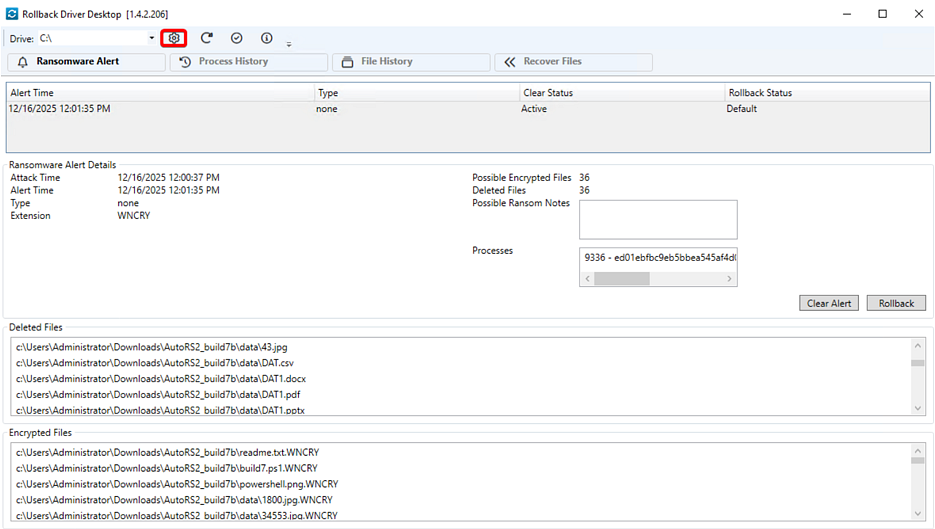
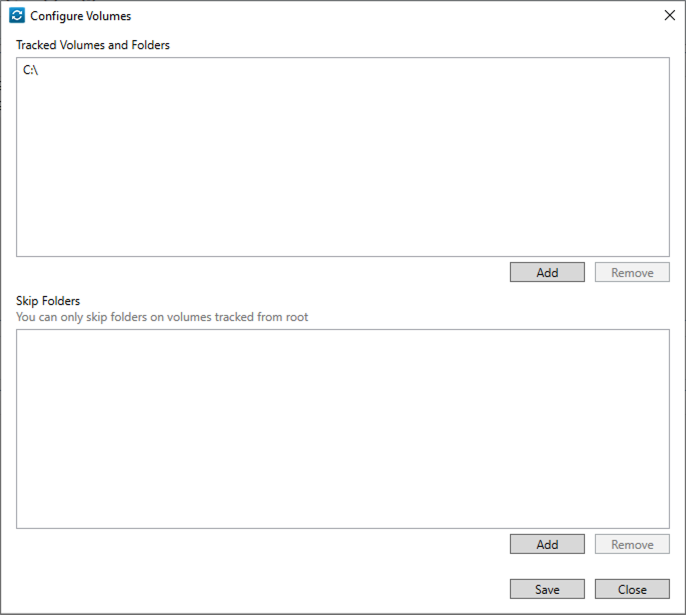
Exclusion examples:
- C:\Users\admin\A1
- C:\Users\admin\D2
- C:\Central
What is a minifilter?
A minifilter is a small software component that works within your computer's file system. Its primary purpose is to monitor and sometimes modify how the operating system and applications access, read, and write files. For example, a minifilter might prevent unauthorized access to sensitive files or automatically encrypt certain types of files before they are saved to disk. In the context of a ransomware rollback solution, a minifilter is responsible for tracking changes made to files, allowing the system to revert those changes if a ransomware attack is detected.
How do I disable Rollback and File Recovery?
Set File Recovery to Disable in the Ransomware Protection policy. Then, the EDR agent service (HUNTAgent) must be restarted on the device. While the service typically restarts upon system reboot, an administrator could manually restart it if waiting for a reboot is not feasible. When the policy no longer requires the rollback agent, the EDR agent uninstalls the Rollback service components from the endpoint.
NOTE If tamper protection is enabled, a reboot will be required to restart the EDR agent.
NOTE If the Enhanced detection option remains selected in the policy, the rollback agent components remain installed and continue to run in a low-overhead monitoring mode to support enhanced detection. To remove the rollback agent entirely, switch the detection option to Standard, or use the DisableRollbackInstall registry value described in the section "Controlling Ransomware Rollback installation."
Revision history
| Revision | Date |
|---|---|
| Added FAQ: How do I disable Rollback and File Recovery? | 6/2/25 |
| Added folder exclusion examples. | 6/18/25 |
| PR: On the affected endpoint: Edited step 6 - Click the Rollback button on the Process History tab or the File History tab. | 10/22/25 |
| Compatibility: Edited- Ransomware Rollback supports Windows 10 and above and Windows Server 2012 and above. | 11/18/25 |
| Global review, edits. | 12/17/25 |
| Getting started: Added can rollback directly from the Alert Detail page. Responding to ransomware alerts: In Datto EDR: Added steps 3 - 4 (Rollback). | 7/1/26 |
| Technical review against agent source: corrected minifilter driver file name (cbfilter24.sys); documented Datto Rollback Autorepair scheduled task and Start Menu shortcut name; corrected updater cadence (every 3 hours) and DisableRollbackReboot registry location (HKLM\SOFTWARE\Datto); revised major-update reboot behavior (reboot required because the kernel driver cannot be replaced while loaded; update deferred to next restart); rewrote database application FAQ (complex database engines are not tracked; protect them with application-consistent backups; QuickBooks and SQLite remain supported); documented low-overhead deployment when Enhanced detection is enabled with File Recovery disabled; documented automatic uninstall when policy disables rollback; expanded untracked media list and mandatory exclusions. | 8/7/26 |
| Compatibility section: Added para - Ransomware Rollback is not recommended for systems that generate significant disk I/O or perform intensive storage operations, as these workloads may experience performance impacts... | 9/3/26 |
| PR: Configuring your ransomware policy and installing the agent and FAQ: Is Ransomware Rollback related to Enhanced Ransomware Detection? Added New ransomware policies default to the Enhanced detection setting instead of Standard | 9/17/26 |
Controlling Ransomware Rollback installation: Added criteria for creating DisableRollbackInstall. |
10/26/26 |
|
Procedure: Configuring your ransomware policy - Step 4 - Added Rapid Recovery. |
10/29/26 |


