Security Insights
NAVIGATION Organizations > Locations > Security Insights
PERMISSIONS
- Admin/Analyst: View, generate Security Insights for all of the partner's organizations.
- External Analyst: View Security Insights their assigned organizations only.
Overview
Security Insights provides an AI-powered summary of security activity for each individual location within an organization. It analyzes endpoint alert data correlated over the previous 30 days and identifies patterns, anomalies, and opportunities to adjust policy (tuning) to help security teams prioritize investigation and reduce false positives.
Security Insights does not aggregate data across locations. Each location provides a separate Security Insights view and analysis based only on alerts generated within that location.
Access the Security Insights tab from the location’s details page. The first time you access this tab for a location, select Generate to create the report.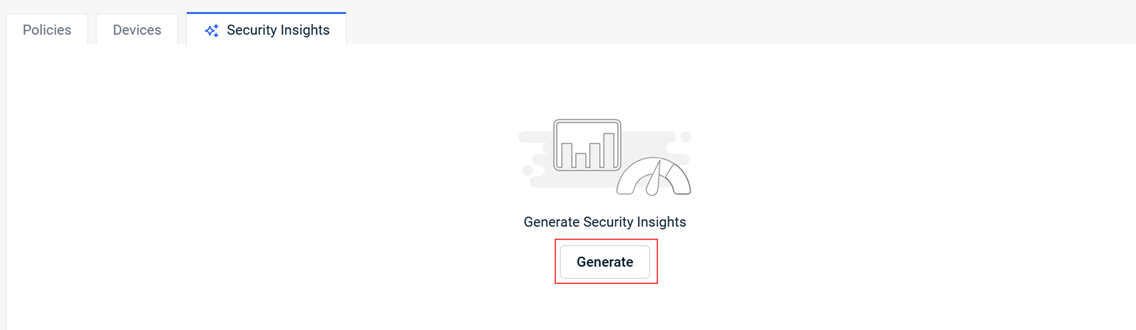
An example of a generated report is displayed below.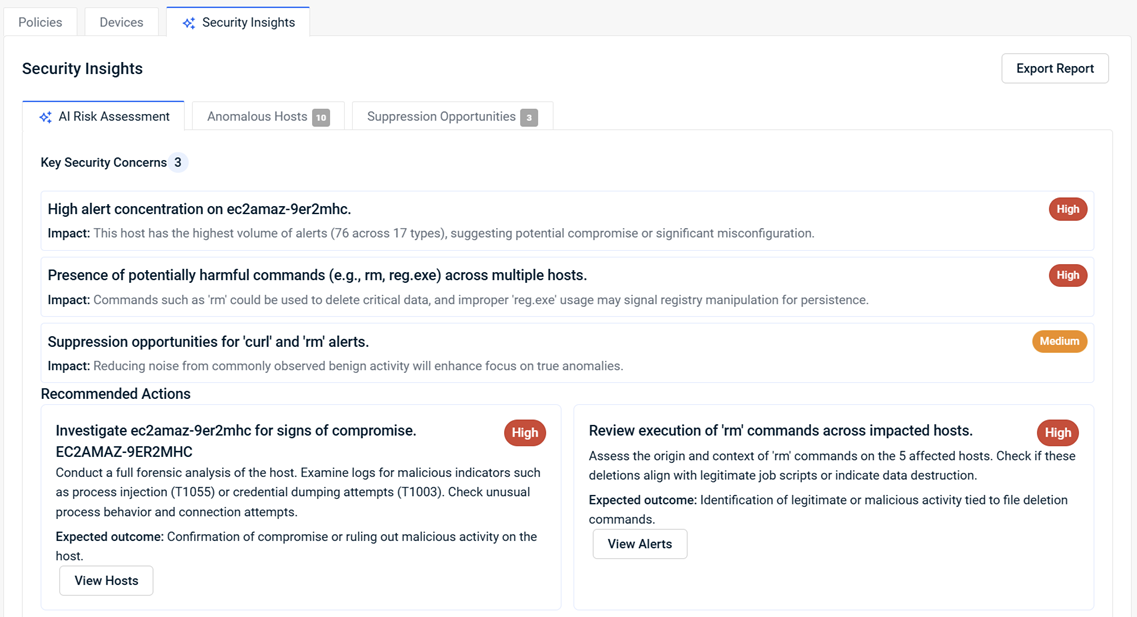
NOTE After the initial report generation, the system automatically generates the report daily. When you return to the page, the most recent report loads automatically. To update the report on demand, click Generate Insights.
How it works
Datto EDR analyzes endpoint alerts generated in the selected location over the previous 30 days. It queries and correlates alert data across multiple attributes, including:
- Alerts by host
- Alerts by time frame
- Alerts by rule
- Alerts by rule and process
- Alerts by rule, process, and time of day
- Number of alerts per host
EDR aggregates this data to identify meaningful patterns and abnormal behavior. All correlated data is then passed to the AI engine for analysis.
Security Insights tabs
Security Insights presents its findings across three primary tabs, allowing security teams to quickly review and act on the most relevant information.
AI Risk Assessment tab
The AI Risk Assessment tab provides a high-level summary of security conditions observed in the selected location.
The tab includes the following sections:
Key Security Concerns
This section provides a risk summary explaining notable security observations. It highlights areas of concern such as a high number of alerts for specific alert types, use of potentially malicious processes, or other unusual or suspicious behavior. Each concern includes a severity level aligned with the standard alert tiers in the product.
In the example, the AI engine identified three areas of concern. Each includes an impact statement that describes why the findings matter.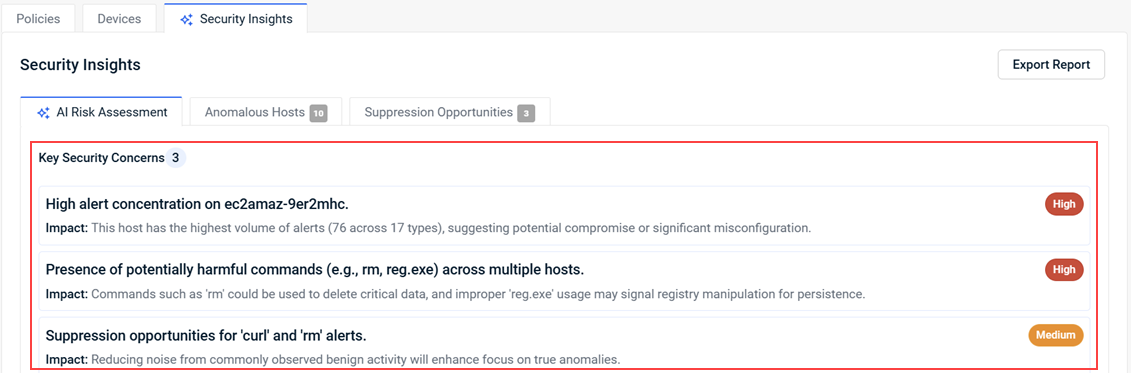
Recommended Actions
AI-generated guidance helps you investigate identified security conditions. Each action is presented in its own card and includes instructions for completing the action and the expected outcome. Views Hosts navigates to the Devices page and View Alerts navigates to the Alerts page. Each page is pre-filtered for the selected action.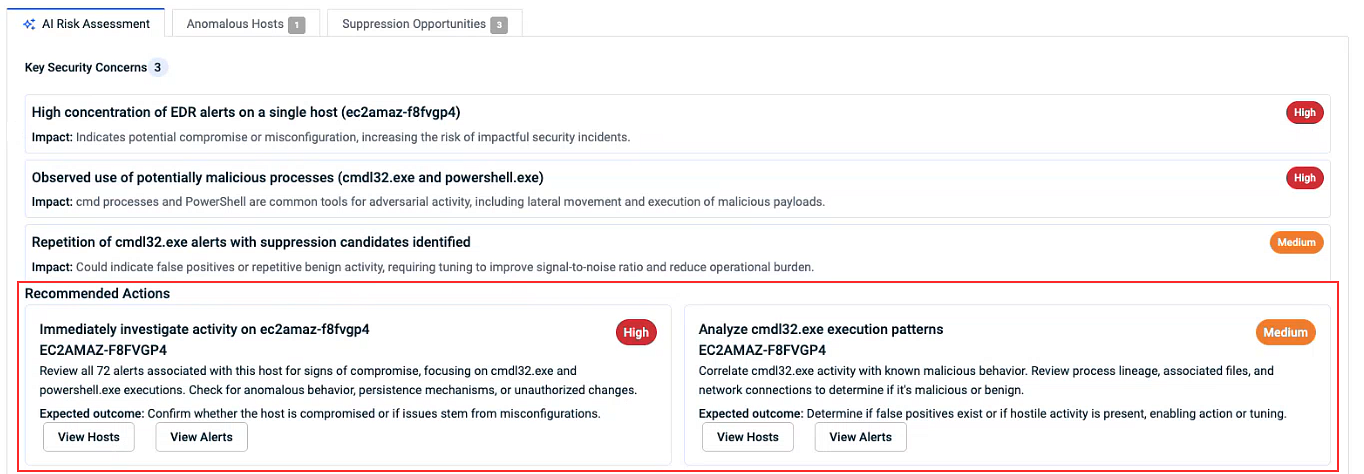
Anomalous Hosts tab
The Anomalous Hosts tab identifies devices within the selected location that exceed one or more internal thresholds and may require further investigation.
Anomalous hosts are determined dynamically, based on evolving patterns observed across the location, rather than by a fixed list of rules. Thresholds may include:
- Alert volume significantly higher than other hosts at the same location.
- An unusually high number of high-severity alerts.
- Temporal clustering, where a high percentage of a host's alerts occur within a narrow time frame or during a sudden spike in the types of alerts.
- A high variety of alert types on a single host.
NOTE Thresholds are defined by the EDR product and cannot be customized by organizations.
The tab includes the following information:
- An expandable section for each identified host that includes the host name, number of alerts, number of alert types, and priority.
- Severity Breakdown, which indicates the number of high, medium, and low-level alerts.
- Date range on which the information is based.
- Investigate with AI, which provides steps for investigating each threshold (see the Investigate with AI section below).
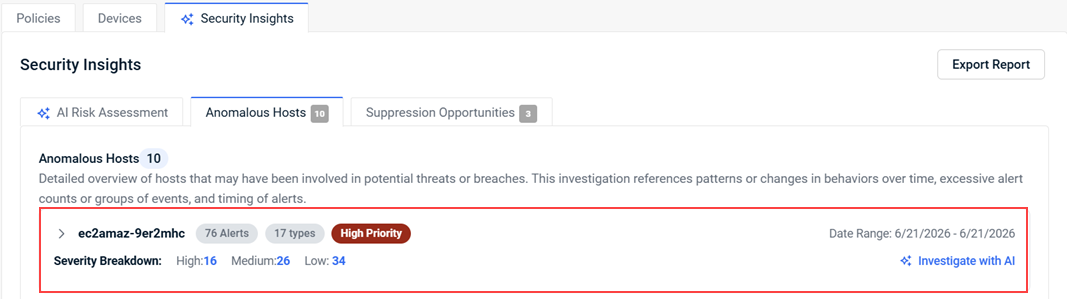
Expanding an identified host section displays the thresholds that were met along with their descriptions.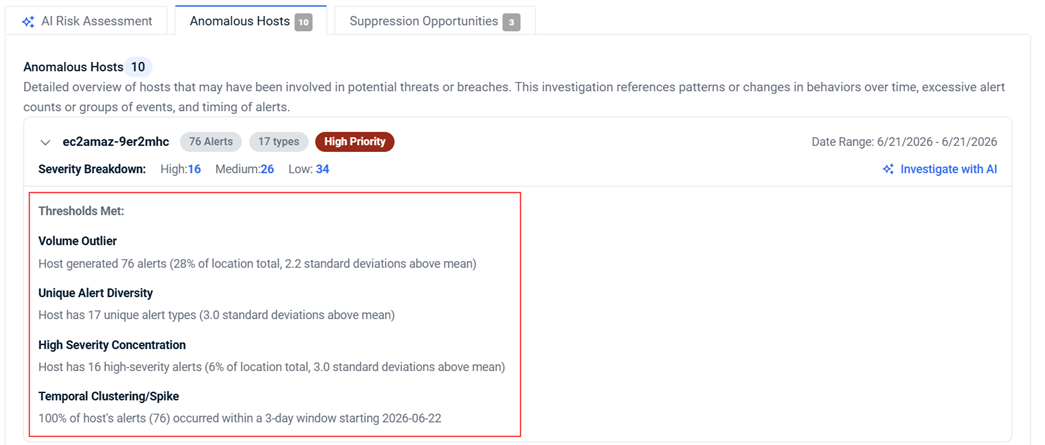
Investigate with AI
Clicking Investigate with AI opens the AI Investigation dialog box containing steps for investigating each threshold. Each step instructs what to check and describes the indicators that led to the threshold being met.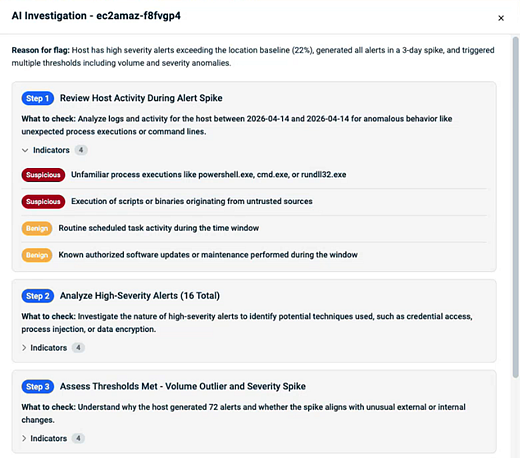
Suppression Opportunities tab
The Suppression Opportunities tab highlights alerts that appear frequently and consistently within the location and may be good candidates for suppression to help reduce alert noise.
Suppression opportunities are evaluated using patterns that differ from anomalous host detection. Indicators may include:
- Alerts occur more frequently than others across the location.
- Alerts occurring at the same time, suggesting a scheduled task.
- Alerts that are evenly distributed over several days rather than associated with a single incident.
The tab includes the following information and functionality:
- An expandable section for each detection rule identified as a potential suppression candidate. Each section includes:
- The number of times the alert occurred within the date range.
- The confidence level (for example, high confidence) that the alert can be suppressed without affecting the detection of real threats.
- The estimated noise-reduction impact.
- Create Suppression, which enables you to create a suppression rule directly from the tab.
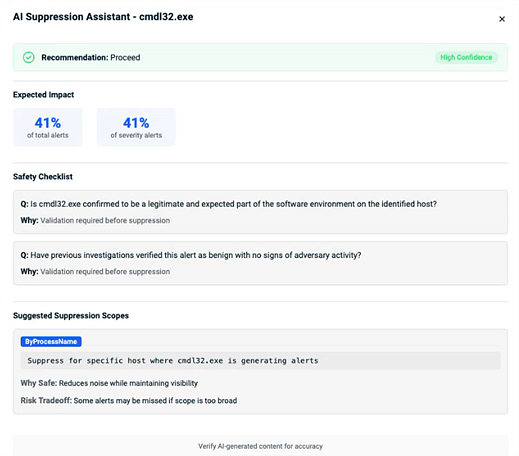
- AI Suppression Assist, which presents a safety checklist to support validation and suggests an appropriate scope of suppression. See the AI Suppression Assist section below.
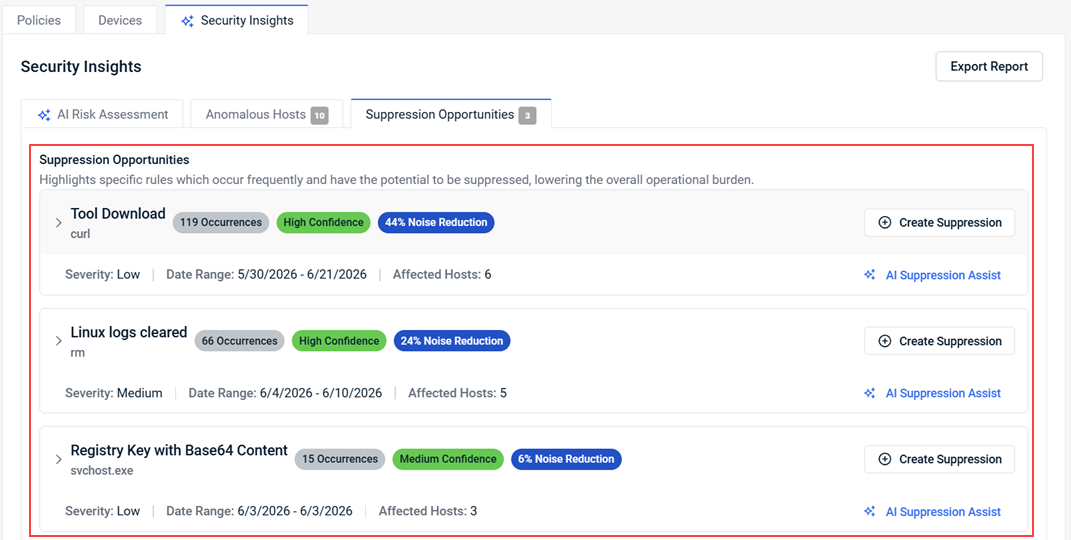
Expanding a suppression opportunity displays the detected patterns and descriptions that led to the suppression recommendation.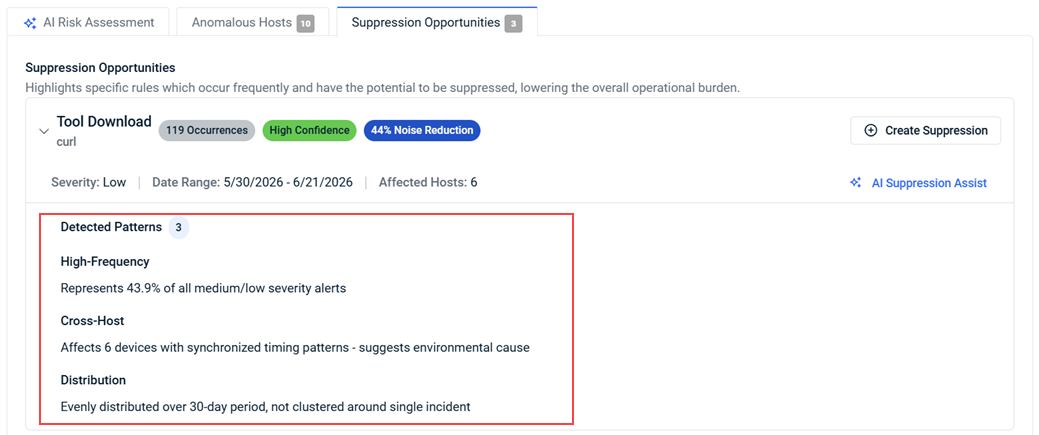
AI Suppression Assist
Before creating a suppression rule, click AI Suppression Assist. The AI Suppression Assistant dialog box:
- Displays the AI‑determined confidence level for suppressing the selected detection rule.
- Presents a safety checklist to support validation.
- Suggests an appropriate scope for suppression.
IMPORTANT Always validate suppression candidates carefully to avoid reducing visibility into real threats.
| Revision | Date |
|---|---|
| Initial release. | 7/1/26 |
| Deleted section: Reporting and export. | 9/29/26 |


