Working with exclusions in your Datto AV policy
Introduction
This document provides guidance on how to correctly define and set exclusions for Datto AV. It will help you ensure that the exclusions are set correctly and validated before being transferred to the engine.
Types of exclusions
There are four types of exclusions that can be defined in Datto AV: file, folder, process, and hash-based (supported on Windows operating systems only).
The purpose of file and folder exclusions are to prevent the engine from flagging authorized software as unwanted or malicious. A file exclusion works by preventing the engine from scanning the specified file. A folder exclusion prevents the engine from scanning any file in the specified folder structure.
Process exclusions help minimize software conflicts and improve performance for applications that access file systems extensively. A process exclusion will tell the engine to ignore the file system activity of a process.
Hash-based exclusions provide a more precise way to manage false positives. Unlike path-based exclusions, hash-based exclusions remain effective if a file is renamed or moved. You can enter the SHA-256 value manually in the Create Exclusion dialog box or create an exclusion from the Alert Detail page. When you click Create Exclusion and select Hash from the Type drop-down list, the SHA-256 value is populated automatically.
| Type | What it does | Format | Example (Windows) | Example (MacOS) |
|---|---|---|---|---|
| File | The file itself is not scanned | Full path, no trailing backslash | C:\App\tool.exe | /home/user1/file.exe |
| Folder | Nothing inside the folder (including subfolders) is scanned | Full path with trailing backslash | C:\App\Data\ | /home/user1/excluded-documents/ |
| Process | File system activity of this process is not scanned | Full image path of the executable | C:\App\service.exe | /home/user1/process2.exe |
|
Hash |
File is not scanned if its digital fingerprint (hash) matches the exclusion entry. | Unique cryptographic fingerprint (SHA-256) | 275a021bbfb6489e54d471899f7db9d 1663fc695ec2fe2a2c4538aabf651fd0f |
NA |
IMPORTANT Hash-based AV exclusions are supported on Windows operating systems only.
Key distinction
A file or folder exclusion protects a specific location on disk. A process exclusion protects a program's activity regardless of where it runs on disk. For guidance on when to use each type of exclusion, see the section "When to Consider Process Exclusions."
Defining exclusions
Requirements
Folder exclusion: Requires a trailing backslash and applies recursively to subfolders.
Format examples:
C:\folder1\
\\folder4\folder5\
macOS examples:
/home/user1/excluded-documents//application123/config/
File exclusion: Must not end with a trailing backslash, otherwise, it will be considered as a folder exclusion.
Format examples:
C:\folder2\file.exe
\\folder8\folder9\file2.exe
macOS example:
/home/user1/file.exe
Process exclusion: Requires the full image path, not just a process name.
Format examples:
C:\folder1\process.exe
\\folder5\folder6\process2.exe
macOS example:
/home/user1/process2.exe
IMPORTANT
- Directory paths in Datto AV are not case-sensitive.
- A file/folder exclusion DOES NOT exclude the process owned by it. If you want the process excluded, you need to define it as a process exclusion. Likewise, a process exclusion does not prevent the excluded process's executable file from being scanned or quarantined. If you also need to protect the executable itself, add a file exclusion for that file. For guidance, see the section "When You Need Both a File and a Process Exclusion."
Wildcards
- * is supported as a dynamic substitution in folders, file extensions, and filenames.
- Wildcards are not supported for designating ANY drives. For example,
*:\Program Filesmust be entered asC:\Program Files. If software is installed on different drives across your endpoints, add one exclusion per drive letter. - Wildcards in folders only exclude at a single level and will not recurse (for example,
C:\Users\*\file.exewon’t matchC:\Users\Chris\Desktop\file.exe). If a path varies by more than one folder level, add one exclusion per variation, or exclude a stable common parent folder instead. - Wildcards are not supported for network paths.
- A race condition can occur for newly written files, for example, temp files, using unknown casing resulting in an unwanted quarantine action. If this occurs, add the path variation to exclusions and restore the file. If the files are written by a known trusted process (such as an installer or updater), a process exclusion for the writer prevents its output from being scanned at write time.
Network path considerations
- Events on network drives: These are always reported via the UNC path. Specifying mapped drive letters will not have an affect. Always enter the UNC path (for example,
\\servername\share\folder\), not the mapped letter (Z:\folder\). - Case sensitive: Network path exclusions are always case sensitive. Match the server's casing exactly.
- No wildcards: Wildcards are not supported in network paths. The exclusion must be the full UNC file or folder path.
Correctly defined exclusion examples
Below are examples of correctly defined exclusions.
File exclusion examples
C:\Program Files (x86)\iprobusinesssystems\upsrate.exe
C:\ProgramData\iprobusinesssystems\*.exe
C:\ProgramData\iprobusinesssystems\rgb*.exe
C:\Users\*\Downloads\file.exe
\\servername\share2\file.exe
Folder exclusion examples
C:\Program Files (x86)\iprobusinesssystems\
C:\Users\*\Documents\GitHub\
C:\Users\*\appData\Local\CentraStage\4.*\scripts\
\\servername\share2\folder2\
Process exclusion examples
C:\Progress\OpenEdge\bin\prowin.exe
C:\Progress\OpenEdge\bin\mprosrv.exe
Incorrectly defined exclusion examples
Below are examples of incorrectly defined exclusions that won't work as expected.
Wildcards cannot designate a drive.
*\folder1\download.exe
Wildcards are not supported in network paths.
\\folder2\*\folder3\file.exe
Environment variables in path elements are not supported.
%DRIVELETTER%\folder1\file1\
Missing the trailing slash required for a folder exclusion
macOS: /home/user/folder1
Additional considerations
Additional requirements
- All links, for example, symbolic links, must be resolved upfront. Exclude the real target path, not the link.
- Environment variables in path elements are not supported. Expand them yourself: use
C:\Users\*\AppData\Roaming\vendor\rather than%APPDATA%\vendor\. - Using Prefix
\\?\: This changes the exclusion to a literal case sensitive path with no wildcard expansion. You may see this prefix in the alert telemetry or on the local AV configuration file. The AV engine will automatically prepend these characters when adding the exclusion to a local file. You don't need to enter these characters unless you want to enter the exclusion as a literal path as noted above.
Wildcards and path sensitivity
- Wildcards and case insensitivity are both achieved through dynamic path expansion. This means matching files/folders and alternative casings are resolved on disk and added to exclusions as they are found on each endpoint.
For example,c:\users\*\file.execan result in the exclusionsC:\Users\JohnD\file.exeandC:\Users\ChrisG\FILE.EXEbeing added on that specific endpoint.
- A Datto AV alert will report the observed casing in the field originalPath.
Performance
- Too many exclusion entries can lead to reduced performance. Consider a nested approach (folder exclusions) where applicable. Audit the list periodically and remove exclusions for software that is no longer installed.
- Where possible, we recommend using a folder exclusion over a wildcard as folder exclusions are more effective and reliable than exclusions with wildcards.
- We recommend using process exclusions instead of file exclusions in cases of high resource usage. Process exclusions help alleviate performance issues by preventing the system from scanning the process's file system or its associated activity.
- Server Performance: AV-related system performance issues on servers are often caused by excessive rescanning of frequently accessed and changed files. This condition is resolved by applying the appropriate process and file/folder exclusions to the real-time protection policy. Specific exclusion lists should be provided by that software vendor.
Handling paths that change
Many products install to paths that vary per user, per version, or per machine. The patterns below show how to write exclusions that survive those variations while staying within the wildcard rules above.
Per-user paths
Applications installed under a user profile live under C:\Users\<username>\... Use a wildcard for the username segment:
C:\Users\*\AppData\Local\vendor\app\
Versioned folders
Software that keeps its version number in the path breaks static exclusions on every update. Wildcard the version segment (as in the CentraStage\4.*\scripts\ example above):
C:\Program Files\vendor\app\*\C:\Program Files\vendor\app\*\service.exe
32-bit vs. 64-bit install locations
The same product may install to C:\Program Files\ on some machines and C:\Program Files (x86)\ on others. Wildcards cannot cover this difference, so add both exclusions:
C:\Program Files\vendor\app\C:\Program Files (x86)\vendor\app\
Randomized or GUID folder names
Installers and packaging systems create folders with random names at a single level; wildcard that level:
-
C:\ProgramData\vendor\{*}\
Installs on different drives
Because a wildcard cannot designate a drive, software installed on different drives across your fleet needs one exclusion per drive letter. Consider keeping these grouped in a Universal AV Exclusion list so they stay in sync.
Common scenarios
The examples below illustrate how to choose and format exclusions in common scenarios. These examples are not complete exclusion lists. When available, use the software vendor's published exclusion recommendations as your starting point, and add only the exclusions required for your environment.
Database server
Database engines constantly rewrite large data files; scanning them hurts performance. For example, for SQL Server you might exclude the data folder and the engine process:
- Folder:
C:\Program Files\Microsoft SQL Server\MSSQL*\MSSQL\DATA\
- Process:
C:\Program Files\Microsoft SQL Server\MSSQL*\MSSQL\Binn\sqlservr.exe
The folder exclusion stops scans of the data files at rest; the process exclusion stops real-time scanning of every write the engine makes — including to locations outside the excluded folder.
Backup or sync agent
- Process:
C:\Program Files\backupvendor\agent\backupagent.exe - Folder:
D:\Backups\
Line-of-business app with a local cache
- Folder:
C:\Users\*\AppData\Local\lobapp\cache\ - File:
C:\Program Files\lobapp\lobapp.exe
Application on a network share
-
Folder:
\\servername\appshare\vendor\
Remember: No wildcards in UNC paths and network exclusions are case sensitive.
When to consider process exclusions
Use a file or folder exclusion when the problem is a file being detected or quarantined. The item on disk is what needs protecting.
Use a process exclusion when the problem is performance or interference during a program's activity. The program touches many files in many locations, and scanning each access is the bottleneck. Typical candidates: database engines, backup agents, indexing services, build tools, and sync clients.
When you need both a file and a process exclusion
Because file and process exclusions are independent (see the IMPORTANT section under Requirements), some situations require a pair:
- The application's executable is flagged and its activity is slowed. For example, an in-house tool that AV flags on launch and that writes heavy log volume. Add a file exclusion so the executable is not quarantined, and a process exclusion so the files it writes are not scanned:
File:C:\tools\customagent\customagent.exe
Process:C:\tools\customagent\customagent.exe
- An agent that updates itself. The self-update drops a new executable (needs a folder exclusion so the fresh binary is not quarantined before it can run) while the running agent needs a process exclusion for its file activity:
Folder:C:\Program Files\syncvendor\agent\
Process:C:\Program Files\syncvendor\agent\syncagent.exe
- Race condition on newly written files. As noted under Wildcards, a newly written file can be quarantined before its file exclusion applies. A process exclusion for the trusted writer (the installer or updater) prevents its output from being scanned at write time.
When NOT to use process exclusions
- Do not exclude general-purpose interpreters or shells (powershell.exe, cmd.exe, wscript.exe, python.exe). This blinds AV to a large share of real attack activity.
- Do not use a process exclusion as a substitute for investigating a detection. Confirm a flagged binary is legitimate first.
Universal AV Exclusion
With Universal AV Exclusion, you can create file, folder, and process exclusions in a single list that can be inherited by any Datto Antivirus policy. This makes managing your Datto AV exclusions easier. Universal AV Exclusion is accessed on the Policies page.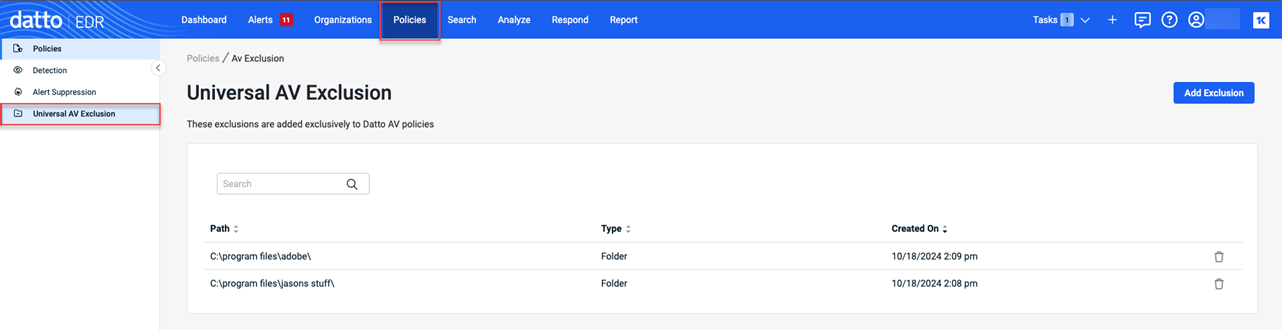
You create the exclusion list using one of following methods:
-
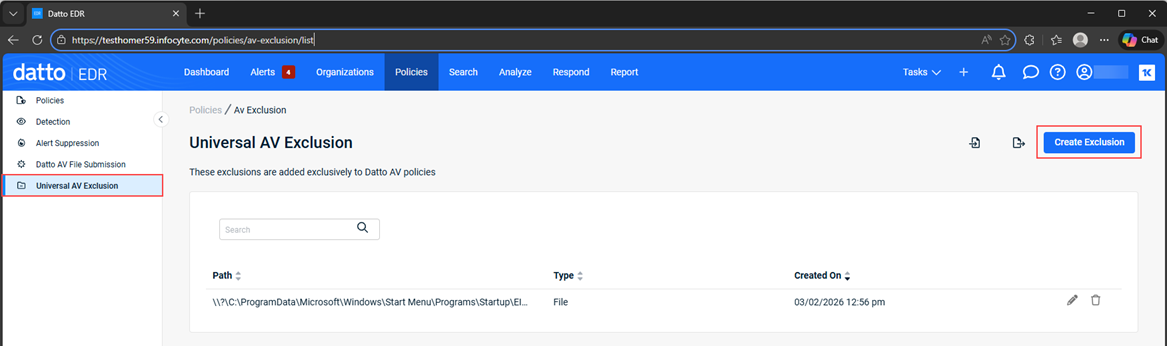
Click the Create Exclusion button to add an exclusion. You must click Create Exclusion for each exclusion you want to add.
-
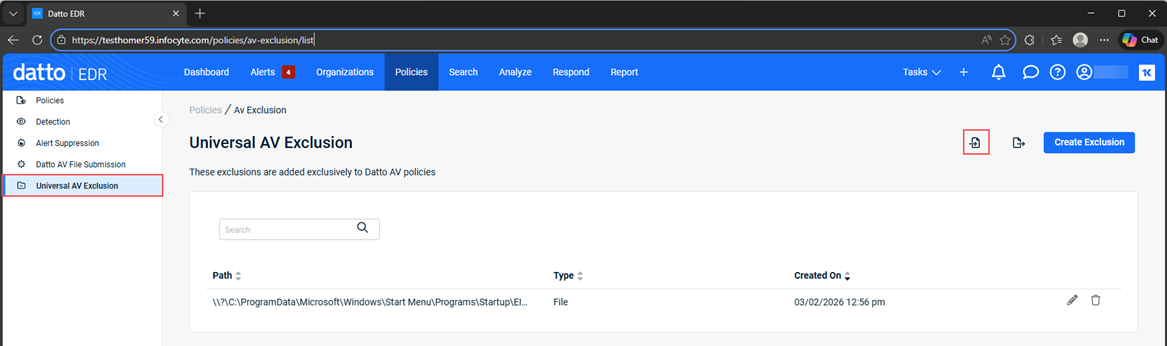
Click the Import Exclusions icon to upload a CSV file that contains a list of exclusions.
CSV file format
To import a list of exclusions using a CSV file, create a spreadsheet as follows:
- In the first row, add the column headers path and type, with each header in its own cell.
- Add each exclusion on a separate row:
- Enter the exclusion path in the first cell.
- Enter the corresponding type in the second cell.
Example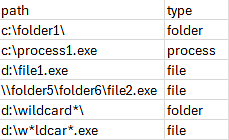
- Save the file using the .csv file extension.
NOTE Click the Export Exclusions icon to export the list as a CSV file. 
Including the list in a Datto AV policy
The Universal AV Exclusion list can be inherited by any Datto AV policy by enabling Include Universal AV Exclusion within the desired AV policy.
IMPORTANT For exclusions applied to removable drives (such as USB devices), if the device is not connected during system boot, the path may be subject to a race condition and could be quarantined by the engine. We recommend connecting the storage device to the endpoint before boot to ensure the exclusion for the path is applied successfully.
How to...
 Define AV policy exclusions
- On the top navigation bar, click Policies.
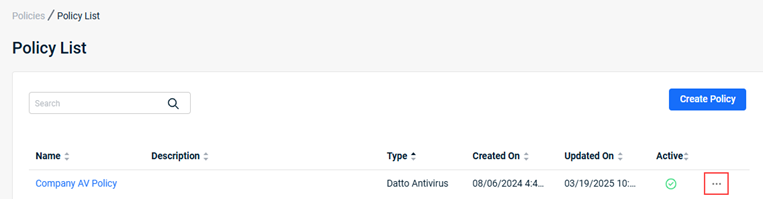
- Your Policy List is displayed. For the applicable Datto Antivirus policy, click the ellipses menu.
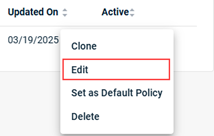
- Select Edit.
- Expand the Exclusions section.

- Click the Add Exclusion button.

- In the Add Exclusion modal:
- In the Type list, select File, Folder, Process, or Hash (Windows only).
- In the Path field, enter the exclusion. If you selected Hash in the previous step, this field is labeled Value.
- Click the Add button.
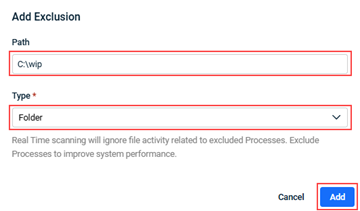
The exclusion is listed in the Exclusions table.
- To add another exclusion, repeat step 6.
- In the upper-right corner of the Edit Policy page, click Save.
NOTE Click the Export Exclusions icon to export the list as a CSV file.
Implement Universal AV Exclusion
- On the top navigation bar, click Policies.
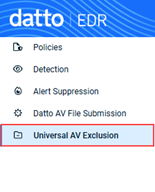
- In the left navigation menu, select Universal AV Exclusion.
- To create a list of exclusions using the Create Exclusion button:
- Click the Create Exclusion button.
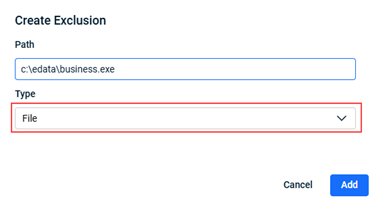
- The Create Exclusion modal is displayed. In the Type list, select Folder, File (selected automatically), or Process or Hash (Windows only).
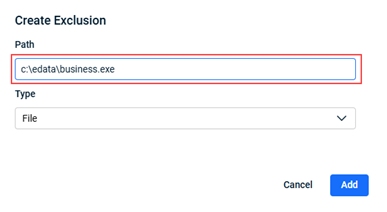
- In the Path field, enter the exclusion. If you selected Hash in the previous step, this field is labeled Value.
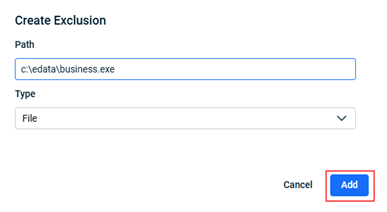
- Click the Add button.
The exclusion is listed in the Universal AV Exclusion table.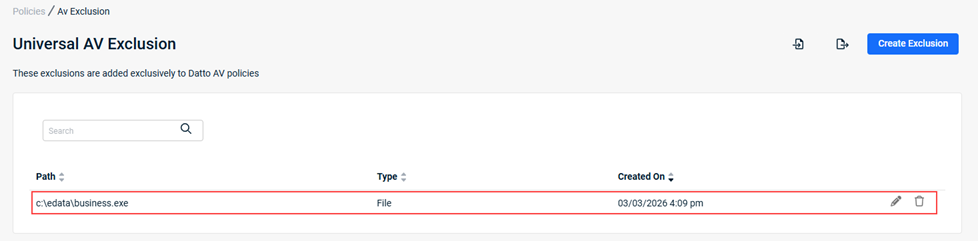
- To add another exclusion, repeat steps 3a-d.
NOTE To edit a Universal AV Exclusion, click its pencil icon. Make the desired edits and click Update.
- Click the Create Exclusion button.
- To upload a list of exclusions using a CSV file:
- Create the CSV file per the requirements specified in the CSV file format section above.
- Click the Import Exclusions icon.
- Follow the prompts.
- To include the Universal AV Exclusion list in a Datto AV policy:
- In the left navigation menu, select Policies.
- For the applicable Datto Antivirus policy, click the ellipses menu.
- Select Edit.
- Expand the Exclusions section and select the Include Universal AV Exclusion checkbox.
- In the upper-right corner of the Edit Policy page, click Save.
| Revision | Date |
|---|---|
| Added format examples in the Defining exclusions section. Added Incorrectly defined exclusion examples section. Added Universal AV Exclusion section. Added procedures for defining AV policy exclusions and implementing Universal AV Exclusion. | 3/20/25 |
| Edited both PRs per new AV policy UI. | 4/1/25 |
| Added Important: AV is case sensitive. | 4/16/25 |
| Added to Requirements - Important note: A file/folder exclusion DOES NOT exclude the process owned by it. If you want the process excluded, you need to define it as a process exclusion. | 4/21/25 |
| Added Performance bullet: Recommend using process exclusions instead of file exclusions. | 6/17/25 |
| Edited Important: Directory paths in Datto AV are not case-sensitive. | 11/18/25 |
| Added Important: For exclusions applied to removable drives... | 12/20/25 |
| Added macOS exclusion examples. | 2/6/26 |
| Universal AV Exclusion: Added import/export exclusion and CSV file format content. Updated all screens that include import/export exclusion. Implement Universal AV Exclusion steps: Added note: To edit a Universal AV Exclusion... | 3/5/26 |
| Deleted C:\folder4\process.* as incorrectly defined exclusion. | 4/1/26 |
| Global review: Types of exclusions - Added table. Wildcards, Network path considerations, Additional requirements updated. Added sections: Handling paths that change, Common scenarios, When to consider process exclusions, When not to use process exclusions. | 8/16/26 |
| Added Important: Datto AV does not support hash-based exclusions. | 9/3/26 |
| Added Hash as an exclusion type. Edited IMPORTANT: Datto AV does not support hash-based exclusions. Edited to Hash-based AV exclusions are supported on Windows operating systems only. | 9/17/26 |
| Types of exclusions table: Added Hash. | 10/20/26 |


