Configuring Datto DNS Secure rules for a single endpoint
Overview
Datto DNS Secure is a website-filtering capability built into the Datto Antivirus (AV) policy engine. Datto AV policies apply to organizations, locations, or device groups rather than to individual endpoints. To target a single endpoint, you isolate a single device into its own device group and assign it a dedicated policy. This approach gives one endpoint its own block and allow rules without changing what any other device sees.
NOTE To configure DNS Secure for organizations, locations, or device groups, see Configuring Datto DNS Secure.
How it works
To give one device its own rules, you create a device group containing only that device, clone an existing Datto AV policy to preserve its current AV configuration, add your domain rules to the clone's DNS Secure tab, and assign the cloned policy to the group. The endpoint picks up the policy on its next check-in and begins enforcing the rules immediately.
Before you begin
Confirm the following before starting:
- Datto AV license. DNS Secure ships inside the Datto AV policy and requires an active Datto AV license on the endpoint. It cannot be deployed on its own.
- Windows endpoint. DNS Secure supports Microsoft Windows only. Rules do not apply to macOS endpoints.
- Admin permissions. You need Admin permissions in the Datto EDR console to create device groups and edit or assign policies.
- Browser restart. If a browser is already open on the endpoint when the new policy takes effect, plan to restart it before verifying that DNS Secure rules are applied.
How to...
Create a device group for the target device
- In the Datto EDR console, click Organizations > Devices.
- Click the Device Groups tab, then click Add.
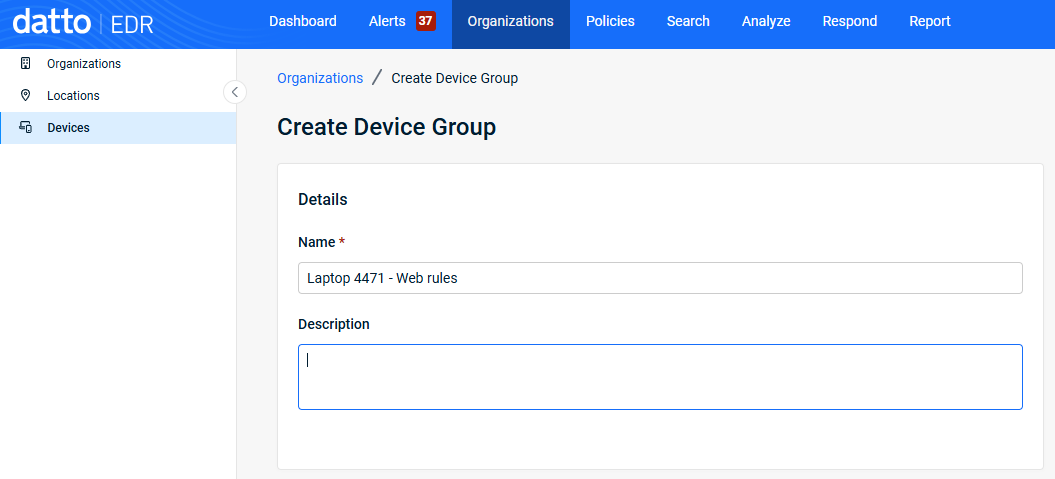
- Type a descriptive name for the group, for example, LAPTOP-4471 – Web rules or CEO-Workstation – Site blocks.
NOTE A clear, purpose-specific name makes it easier to identify the correct group when you assign the policy in a later step. A name like LAPTOP-4471 – Web rules is much easier to identify in a list than a generic name like Group 7.
- Click Save.
Add the device to the group
- In the left navigation menu, select Devices.
- Click the ellipses menu (···) at the end of the desired device's row, then select Assign Device Group.
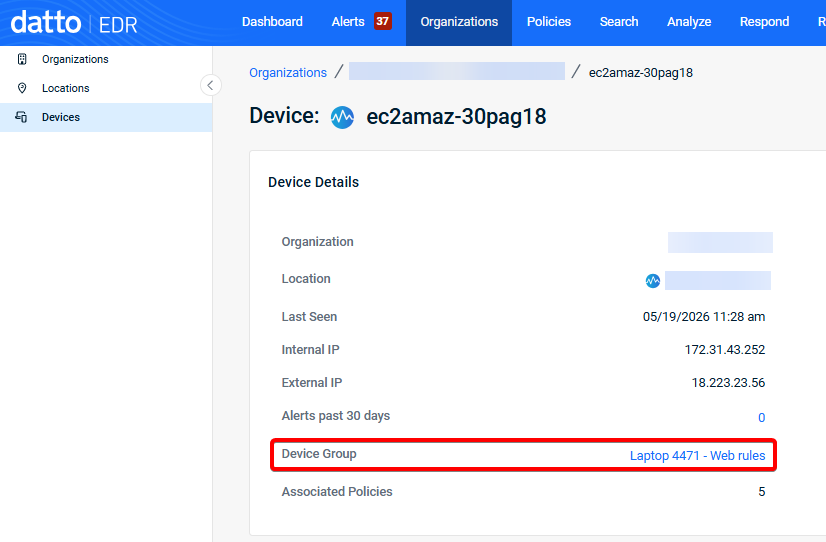
- Select the device group you just created above.
- Confirm the Device Group column in the Devices table shows the correct group name.
Clone a Datto AV policy
- On the top navigation bar, click Policies.
- Locate the Datto Antivirus policy whose configuration most closely matches what you would like for this device and click its ellipses menu.
- Select Clone.
NOTE Cloning preserves all existing AV settings—scanning, quarantine, and exclusions—so the only meaningful difference in the new policy becomes your domain rules. Editing the original policy would change website access for every device assigned to it.
- Rename the cloned policy to match the device group, for example, Datto AV – LAPTOP-4471 – Web rules
- Enter a Description and click Clone. The cloned policy opens on the Edit Policy page.
Add domain rules in the DNS Secure tab
- In the Policy Rules section, click the DNS Secure tab.
- Select the Enable Datto DNS Secure check box.
- Expand the Domain List section, then click Add Domain.
- In the Add Domain dialog, select the rule type:
- Trusted Domain: Allows the device to reach the site.
- Block Domain: Prevents the device from reaching the site.
- Type a domain in the Domain field. To add more domains applying to the same rule type, click + Add Domain and type each additional domain.
NOTE All domains entered in a single Add Domain dialog must be the same type, all Block Domain or all Trusted Domain. To add the opposite type, click Add to save the current entries, then open Add Domain again.
- Click Add. The entries appear in the Domain List table.
- On the Edit Policy page, click Save.
NOTE Saving the policy stores your DNS Secure rules but does not yet affect any device. Assignment happens in the next step.
Assign the policy to your device group
Choose the appropriate scope for your environment:
- Choose the appropriate scope for your environment:
- Organization scope: Use when the device group may span multiple locations, or when you expect to manage these rules broadly.
- Location scope: Use when the device group and its rules apply to a single location. This is the most common choice for a single-device rule.
- Organization scope: Use when the device group may span multiple locations, or when you expect to manage these rules broadly.
- Navigate to the desired organization's or location's details page.
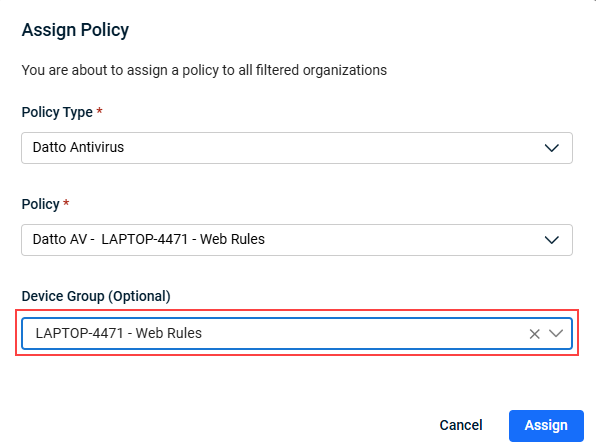
- In the Assigned Policies section, click Assign Policy.
- Complete all fields and select the device group you created earlier.
-
Click Assign.
Test that it worked
On the endpoint, open a browser (restart it first if it was already running) and visit a blocked site. The user sees a block page showing the blocked category, the policy name, and the hostname. Trusted sites load normally.
Domain format reference
The Domain List section on the DNS Secure tab accepts several domain formats. Each format affects scope differently depending on the rule type selected.
| URL example | Blocked outcome | Trusted outcome |
|---|---|---|
| Google.com | Access to google.com and www.google.com will be blocked but access to sub-domains, such as accounts.google.com, will be allowed. | Access to google.com and www.google.com will be allowed but access to sub-domains, such as accounts.google.com, will be blocked. |
| www.google.com | This will block access to google.com and www.google.com but access to its sub-domains will be allowed. | This will allow access to google.com and www.google.com but access to its sub-domains will be blocked. |
| *.google.com | This will block access to google.com, www.google.com, and its sub-domains. | This will allow access to google.com, www.google.com, and its sub-domains. |
| Accounts.google.com | Access to accounts.google.com will be blocked while access to google.com and other sub-domains, such as help.google.com, will be allowed. | Access to accounts.google.com will be allowed while access to google.com and other sub-domains, such as help.google.com, will be blocked. |
| Help.*.com | Not an acceptable URL format. | Not an acceptable URL format. |
| https://google.com | Not an acceptable URL format. | Not an acceptable URL format. |
| www.reddit.com/sysadmin | Not an acceptable format due to "/" in URL. | Not an acceptable format due to "/" in URL. |
| Revision | Date |
|---|---|
| Initial release. | 7/7/26 |


