Isolating a device and reverting isolation
Host isolation cuts a device off from the network so a threat cannot spread, communicate with an attacker, or move laterally to other endpoints. The Datto EDR agent stays connected to the EDR cloud throughout isolation, so the device keeps checking in, keeps reporting telemetry, and can still receive further response actions — including the command to come back online. Isolation is fully reversible.
IMPORTANT Host Isolation is currently supported only on Windows and Linux platforms.
Key capabilities
- Three isolation methods. Isolate a device directly from an alert, from the Device Details page, or automatically through a Ransomware or Automated Response policy.
- Bulk isolation and revert. Select multiple devices from the Devices list and isolate or revert them in a single action.
- Continuous telemetry during isolation. The Datto EDR agent maintains its cloud connection while the device is isolated, so investigation and further response actions continue uninterrupted.
- Automatic isolation by policy. Automated Response and Ransomware policies can isolate a device the moment a qualifying alert fires, with no analyst involvement.
- Cross-product isolation awareness. Built-in indicators identify whether Datto EDR, Datto RMM, or RocketCyber applied the isolation, preventing incorrect revert attempts.
How it works
When you isolate a device, Datto EDR instructs the agent to apply network restrictions on its next check-in. If the device is offline, the action is queued and applies when the device reconnects. The agent enforces a short allowlist of addresses, primarily the EDR cloud, so management and telemetry continue while all other network traffic is blocked. To release the device, you revert isolation from the same product that applied it. Reverting from a different product does not remove the original restrictions.
Before you begin
- Your organization must have an active Datto EDR license.
- Your role must be Admin or Analyst. External Analyst users cannot access the Respond section.
- The Host Isolation and Host Isolation Restore response extensions must be present and active in Admin > Extensions.
How to...
Isolate a device from an alert
Use this method when you are actively working an alert and want to contain the affected host without leaving the alert detail page.
 From the Alert detail page
- Click Alerts in the top navigation bar.
- Click the alert name to open the Alert detail page.
- Click Respond at the top of the page.
- In the Responding to <alert name> dialog box, select Host Isolation [Win/Linux].
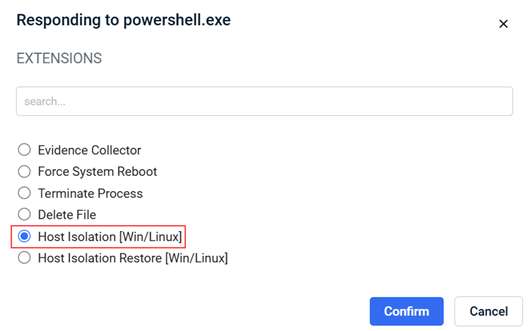
- Click Confirm.
From the Alerts table
- Click Alerts in the top navigation bar.
- At the end of the row for the alert you want to act on, click the ellipses menu and select Respond.
- Select Host Isolation [Win/Linux] and click Confirm.
NOTE To act on multiple alerts at once, select the check box for each alert, then above the table, click Respond. The dialog confirms how many items you are responding to.
Result
A confirmation message appears showing that the response was submitted. On the alert detail page, the Response card marks Isolated with a green check once the action completes. In the alerts list, the response column displays a green I badge — hover over it to see the Isolate tooltip.
Isolate a device from the Device details page
Use this method when you know which device you want to contain and do not need to work through an alert. This method also supports isolating multiple devices at once.
Isolate a single device
- Navigate to Organizations > Devices.
- Click the device name to open its Device details.
- At the top of the page, click Isolate.
- Click OK in the confirmation dialog box that reads "Are you sure you wish to isolate host?"
Result
The Isolate button label changes to Revert Isolation, confirming that the isolation request was accepted. The change is delivered to the agent on its next check-in.
Isolate several devices at once
- Navigate to Organizations > Devices, or open a location and select its Devices tab.
- Select the checkbox for each device you want to isolate.
- Next to the Scan button, click the ellipses menu and select Isolate.
- Confirm the prompt, which lists the names of the devices you selected.
NOTE If any selected device is already isolated, the console prompts you to deselect it before continuing. Deselect the named devices and retry.
Result
The isolation request is queued for each selected device and is delivered on each device's next check-in. The Status column in the Devices list updates to Isolated once each device applies the change.
Configure automatic isolation by policy
Datto EDR can isolate a device automatically, with no analyst action, when a qualifying alert fires. This is the fastest form of containment and is the recommended configuration for ransomware scenarios.
Enable automatic isolation on a ransomware policy
- Navigate to the ransomware policy you want to edit.
- Under Response Options, select the Isolate Host check box.
- Save the policy.
NOTE The Isolate Host check box is enabled by default on new ransomware policies.
Enable automatic isolation on an automated response policy
- Navigate to the automated response policy you want to edit.
- In the Severity Response Actions table, select the desired template (Minimal, Moderate, Aggressive) and enable/disable the Isolate column for each severity level (Medium, High, Severe) that should trigger isolation.
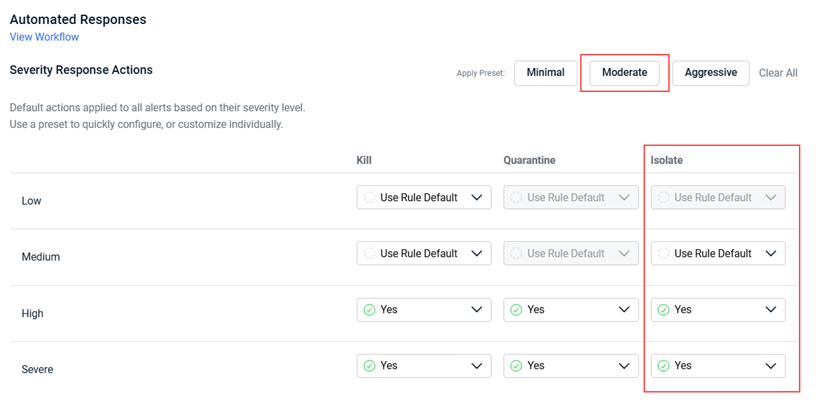
- Optionally, configure rule-specific overrides to turn isolation on or off for individual detection rules.
- Save the policy.
NOTE Isolation cannot be enabled for low-severity alerts in the Severity Response Actions table. That cell is locked to the rule default to prevent isolating devices over low-confidence detections.
Result
When a qualifying alert fires, Datto EDR isolates the affected device without analyst involvement. A system notification titled Device has been isolated appears in the notification bell menu, and the Respond > Responses list shows the name of the policy in the Initiated By column. Manual isolations show the user's email address in that column instead.
Automated response policies evaluate in priority order: a rule-specific override takes precedence, then the severity-level setting, then the rule's own recommended response as a fallback. To review the full evaluation logic, open an automated response policy and click View Workflow.
Determine which solution isolated a device
Three Kaseya products can isolate an endpoint: Datto EDR, Datto RMM, and RocketCyber. Always revert isolation from the same product that applied it. A device isolated by Datto RMM cannot be released from Datto EDR, and vice versa.
NOTE Using the wrong product to revert isolation does not release the device. The product that attempted the revert reports success, while the original product's restrictions remain in force. The device stays offline and the real cause is obscured behind a misleading "successful" revert. Identify the source first, then revert.
How isolation is applied by each product
| Product | How isolation is applied | Notes |
|---|---|---|
| Datto EDR | Manually from an alert or the Device details page, or automatically by a ransomware or automated response policy. | The device stays connected to the EDR cloud and continues to report telemetry. |
| Datto RMM | The Isolate action on the device summary page, the Security card, or the Ransomware monitor. | Windows devices only, and only when standalone Ransomware Detection or Datto Endpoint Security is enabled on the account. The device can still reach Datto RMM and Web Remote. |
| RocketCyber | The Isolate All Devices remediation step, run against an incident. | The device can communicate only with the RocketCyber cloud. |
Identify the source
Work down this table. The first signal that matches tells you which console to use for the revert.
| Where to look | What you see | What it means |
|---|---|---|
| Datto EDR console | Device status reads Isolated; the Device details action bar button reads Revert Isolation; Overview shows EDR Status — Isolated. | Datto EDR applied the isolation. Revert in Datto EDR. |
| Datto RMM — device summary | Datto EDR status shows Isolated (red) with a Revert isolation link beside it. | Datto EDR applied the isolation. The link appears only when Datto EDR is the source. Use it to revert. |
| Datto RMM — device summary | Device status reads Needs Attention and no Datto EDR Isolated status is present. | Datto RMM applied the isolation via the Security card or the Ransomware monitor. Revert in Datto RMM. |
| RocketCyber | An incident shows an executed remediation that includes Isolate All Devices. | RocketCyber applied the isolation. Revert in RocketCyber. |
NOTE Isolating a device through Datto RMM does not produce an Isolated status in Datto RMM. That status is reserved for isolation applied by Datto EDR. An RMM-isolated device shows Needs Attention instead. Misreading Needs Attention as "not isolated" is the most common misdiagnosis in multi-product environments.
Confirm Datto EDR isolation on the endpoint
If the consoles disagree, or a device is unreachable and you need certainty, a technician on the endpoint can confirm that Datto EDR is holding the isolation. All three of the following are true when Datto EDR has isolated the device:
- The Datto EDR Agent (HUNTAgent) service is running, as shown in Task Manager or Services.msc.
- The Datto EDR status JSON file has been updated within the last three minutes.
- The status file reports host isolation — the Isolated property is set to true.
NOTE These checks confirm which product isolated the device. They do not release the isolation. Always revert isolation from the product's console using the steps in this guide.
Revert isolation
Reverting isolation restores the device's normal network access. Within Datto EDR, the same control reverts both manual and automatic (policy-driven) isolations.
NOTE Before you revert, confirm that Datto EDR is the product that isolated the device. See "Determining which solution isolated a device" above.
Before you begin
- Your role must be Admin or Analyst.
- Confirm that Datto EDR applied the isolation. Reverting in Datto EDR has no effect if another product holds the isolation.
- The Host Isolation Restore extension must be present and active in Admin > Extensions.
Revert a single device from the Device details page
- Navigate to Organizations > Devices and click the isolated device.
- At the top of the page, click Revert Isolation.
- Click OK in the confirmation prompt that reads "Are you sure you wish to restore host?"
Result
The button label returns to Isolate and the device status returns to Online once the agent applies the change.
Revert several devices at once
- Navigate to Organizations > Devices, or open a location and select its Devices tab.
- Select the checkbox for each isolated device you want to restore.
- Click the ellipses menu in the list header and select Revert Isolation.
- Confirm the prompt, which lists the names of the selected devices.
Result
The revert request is delivered to each selected device on its next check-in. The Status column in the Devices list returns to Online as each device applies the change.
Reverting isolation applied by Datto RMM or RocketCyber
If the device was isolated by Datto RMM or RocketCyber, the Datto EDR steps above do not release it. Use the product that applied the isolation.
| Product | Where to revert |
|---|---|
| Datto RMM | On the device summary page, click the Revert Isolation action button and confirm the warning dialog. The device reconnects to the network after a reboot. If Datto EDR applied the isolation, use the Revert isolation link shown next to the Datto EDR status instead. |
| RocketCyber | Revert from within RocketCyber, against the incident whose remediation isolated the device. Refer to the RocketCyber documentation for current steps. |
NOTE Datto RMM's Isolate and Revert Isolation buttons appear only for Windows devices and only when standalone Ransomware Detection or Datto Endpoint Security is enabled on the account. Both actions run a job on the device, so the device must be online.
Troubleshooting
| Symptom | What to do |
|---|---|
| Reverted isolation, but the device is still cut off. | Another product is holding the isolation. Work through "Determining which solution isolated a device" above. In most cases, Datto RMM applied the isolation, and the device shows Needs Attention rather than Isolated in the RMM console. |
| Error: "the agent is already in isolated state" (or "restored state"). | The device is already in the state you requested. Refresh the page to see the current status. If you are acting in bulk, deselect the devices named in the error prompt and retry. |
| Nothing happens after confirming isolation or revert. | Isolation and revert are delivered on the agent's next check-in. If the device is offline the action stays queued. Check the Status column in the Devices list. |
| Isolate or Revert Isolation is not visible. | External Analyst users cannot isolate from the Device details page. Confirm your role and confirm that the organization has an active Datto EDR license. |
| A device keeps getting re-isolated. | An automated response or ransomware policy is still matching the underlying condition. Review the policy assigned to the device and the alert that triggered it. Address the root detection rather than repeatedly reverting isolation. |
| Respond is unavailable (greyed out) on an alert. | The Respond action is unavailable for compliance-sourced alerts and requires an active Datto EDR license. Confirm the alert type and license status. |
| Revision | Date |
|---|---|
|
Initial release. |
8/25/26 |
|
Added Important: Host Isolation is currently supported only on Windows and Linux platforms. |
10/13/26 |


