Uninstalling the Datto Endpoint Security agent
PERMISSIONS Datto EDR subscription with administrator-level platform access or Datto AV subscription with administrator-level platform access
PERMISSIONS Service account or administrator-level rights on the target endpoint
IMPORTANT Uninstalling the Endpoint Security Agent is not a recommended troubleshooting step, as it can complicate the support process and require additional effort to restore full functionality.
IMPORTANT RMM integrations: Offboarding an agent integrated via RMM requires steps in both Datto RMM and the Datto EDR portal. For complete uninstall instructions, see the section "Offboard a client" in the RMM Help article Integration: Datto RMM and Datto EDR.
This article describes the methods for uninstalling the Endpoint Security agent from an endpoint.
Uninstalling from the EDR platform
If you need to uninstall the EDR agent, it is highly recommended that you do so from within the EDR platform for the following reasons:
- You will already be authenticated in the platform, and therefore, won't have to provide additional security information, like an uninstall token.
- The agent will be removed from the Devices table.
- The licenses assigned to the agent will released and made available to be assigned to another device.
Device Status
When uninstalling a device from the EDR platform, the Status of the device affects the uninstall process.
- Online: The uninstall process completes in approximately 10 minutes.
- Offline: A device that is Offline cannot check-in with the EDR platform. Therefore, the uninstall process will be queued on the EDR server until the device is back Online.
To uninstall an EDR agent from the EDR platform:
- Navigate to the Organizations page.
- In the navigation pane, click Devices. The Devices page is displayed with the Devices tab selected.
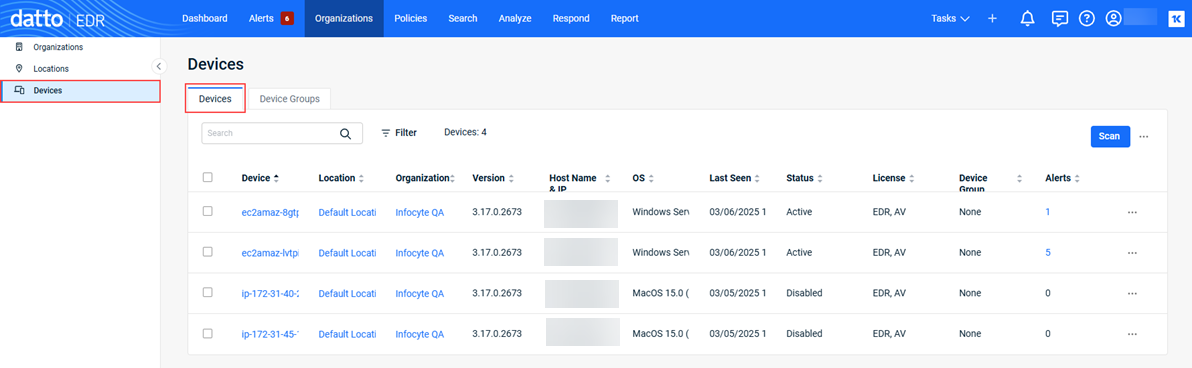
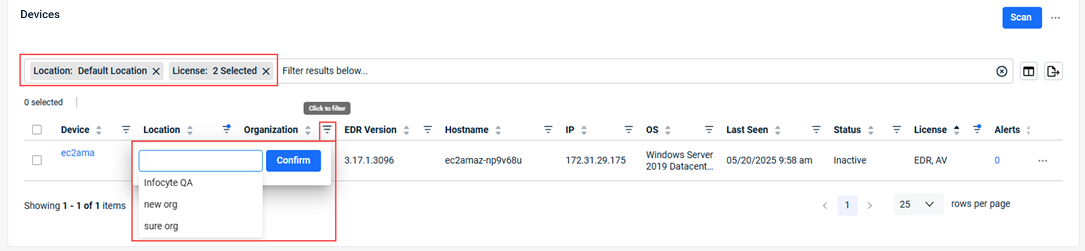
- To filter for specific devices:
- Filtering options are available for each column. Options vary by column type and may include text search, checkboxes, or predefined lists. For example, you can filter devices by location to identify and delete all devices associated with a specific organization location.
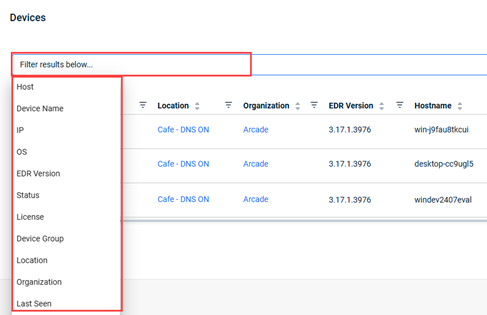
- Alternatively, you can click in the field above the table and select filtering options.
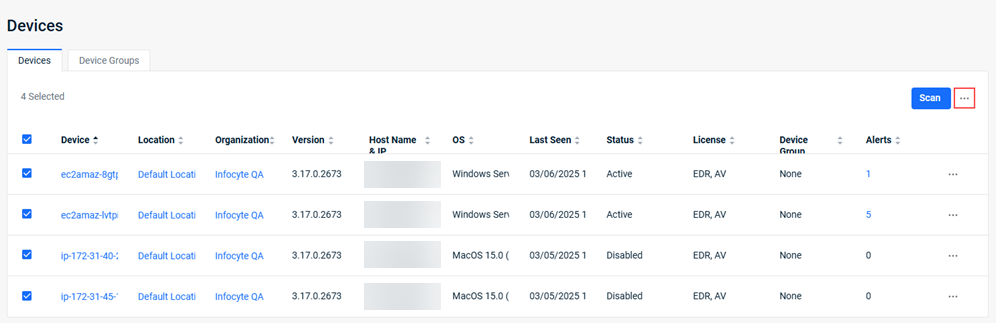
- To uninstall all devices at the same time:
- Select the check box in the column header row (to the left of Device).
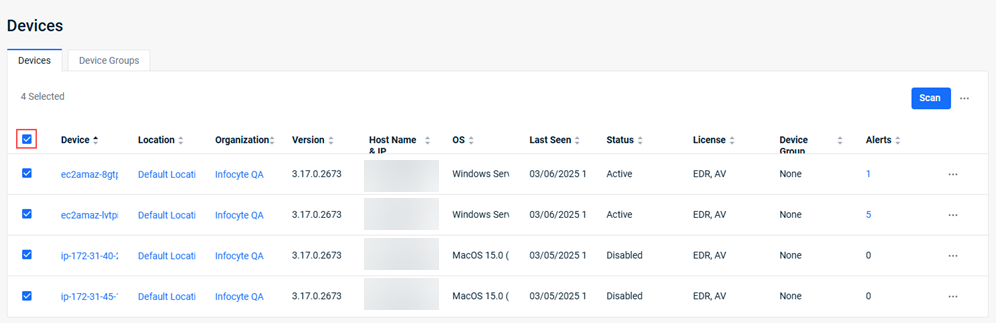
- To the right of the Scan button, click the ellipses.
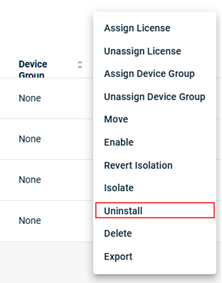
- Select Uninstall.
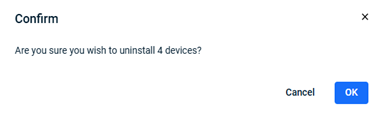
- In the confirmation modal, click OK.
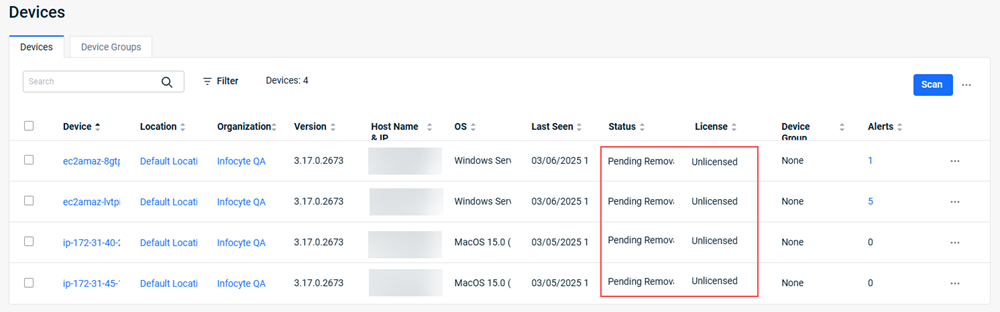
- For each device, Pending Removal is indicated in the Status field and Unlicensed is displayed in the Licensed field.
- Select the check box in the column header row (to the left of Device).
- To uninstall a single device:
- At the end of the applicable device's row, click the ellipses.

- Select Uninstall.
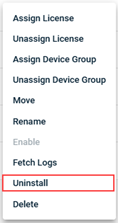
- In the confirmation modal, click OK.
- At the end of the applicable device's row, click the ellipses.
IMPORTANT An offline device will be uninstalled if it is back online within six months of the start of the uninstall process. If the device checks in after the six month time frame, it will reappear on the Devices page and need to go through the uninstall process again.
 Uninstalling locally (not recommended)
In the event that you are unable to uninstall the agent from the EDR platform, you can uninstall from within the platform for which the agent is deployed, like Windows, for example.
However, doing so presents the following issues that may make device management more difficult:
- Using the uninstaller command from within the platform for which the agent is deployed, like Windows, may require you to enter an uninstall token, which you may not have readily available.
- The device will still be listed in Devices table even though it has been uninstalled.
- The licenses assigned to the device will still count as being used even though the device has been uninstalled.
Uninstalling from Windows
To remove the Endpoint Security agent from a Windows system, you can launch its built-in uninstaller via the Add/Remove Programs feature. Alternatively, you can run the following PowerShell commands on the endpoint:
PS > cd "C:\Program Files\Infocyte\Agent"PS > .\agent.exe --uninstall <password>
Replace <password> with the uninstall token from your platform. For more information refer to Navigating the Admin page.
The directory listed above is the default directory Datto EDR installs to on Windows. If you utilize the Datto RMM integration and the commands above error out, we recommend checking the previous installation path for Datto EDR, C:\ProgramData\CentraStage\AEMAgent\RMM.AdvancedThreatDetection\. If found there, uninstall by running the following commands:
PS > cd "C:\ProgramData\CentraStage\AEMAgent\RMM.AdvancedThreatDetection\"
PS > .\agent.exe --uninstall <password>
Uninstalling from Linux
To remove the Endpoint Security agent from a Linux system, you can manually perform the uninstall from a Terminal session.
- Open the terminal application.
- Enter the following command:
Sudo /opt/infocyte/agent/agent.exe --uninstall <password>
Replace <password> with the uninstall token from your platform. For more information refer to Navigating the Admin page.
The directory listed above is the default directory Datto EDR installs to on Linux. If you utilize the Datto RMM integration and the commands above error out, we recommend checking the previous installation path for Datto EDR, /usr/local/share/CentraStage/AEMAgent/RMM.AdvancedThreatDetection. If found there, uninstall by running the following command:
sudo /usr/local/share/CentraStage/AEMAgent/RMM.AdvancedThreatDetection/agent.exe --uninstall <password>
Uninstalling from macOS
To remove the Endpoint Security agent from a macOS system, you can manually perform the uninstall from a Terminal session.
- Open the Terminal application
- Input the following command
sudo /usr/local/infocyte/agent/agent.exe --uninstall <password>
Replace <password> with the uninstall token from your platform. For more information refer to Navigating the Admin page.
The directory listed above is the default directory Datto EDR installs to on macOS. If you utilize the Datto RMM integration and the commands above error out, we recommend checking the previous installation path for Datto EDR, /usr/local/share/CentraStage/AEMAgent/RMM.AdvancedThreatDetection. If found there, uninstall by running the following command:
sudo /usr/local/share/CentraStage/AEMAgent/RMM.AdvancedThreatDetection/agent.exe --uninstall <password>
IMPORTANT If a device does not have network connectivity, it cannot be uninstalled regardless of the method used (EDR platform or locally).
NOTE Performing the uninstall steps in this article should not leave any agent remnant files. If remnant files are present, submit a support ticket.
| Revision | Date |
|---|---|
|
Added IMPORTANT note at top: Uninstalling the Endpoint Security Agent is not a recommended troubleshooting step. |
4/9/25 |
| Updated all uninstall manually PRs. Updated Devices table screens. | 12/20/25 |
| Added Note: Performing the uninstall steps in this article should not leave any agent remnant files. | 6/22/26 |
| Updated Device Status values. To uninstall an EDR agent from the EDR platform - Step 3: Added - You can filter devices by location to identify and delete all devices associated with a specific organization location. | 8/21/26 |
| Added Important: RMM integrations - Offboarding an agent integrated via RMM requires steps in both Datto RMM and the Datto EDR portal. | 9/3/26 |


