How to confirm your UI version and maintenance window
Datto EDR displays the current user interface (UI) version number in the Admin panel and lets you view or modify the scheduled maintenance window for your tenant. Use these features to verify your instance is running the expected release and to control when automatic upgrades occur.
How it works
Datto EDR uses a staggered release process to deliver UI updates. When an update is available for your instance, you receive an in-product notification. Upgrades run during your tenant's preferred maintenance window and complete with minimal downtime. The full two-hour window duration is reserved as a maximum, not a guarantee of outage length.
How to...
Confirm your UI version
Confirm which UI version your Datto EDR instance is running so you can cross-reference the corresponding release notes.
- In the top navigation bar, select
 > Admin
 - The current UI version number is displayed in the lower-left corner of the page.
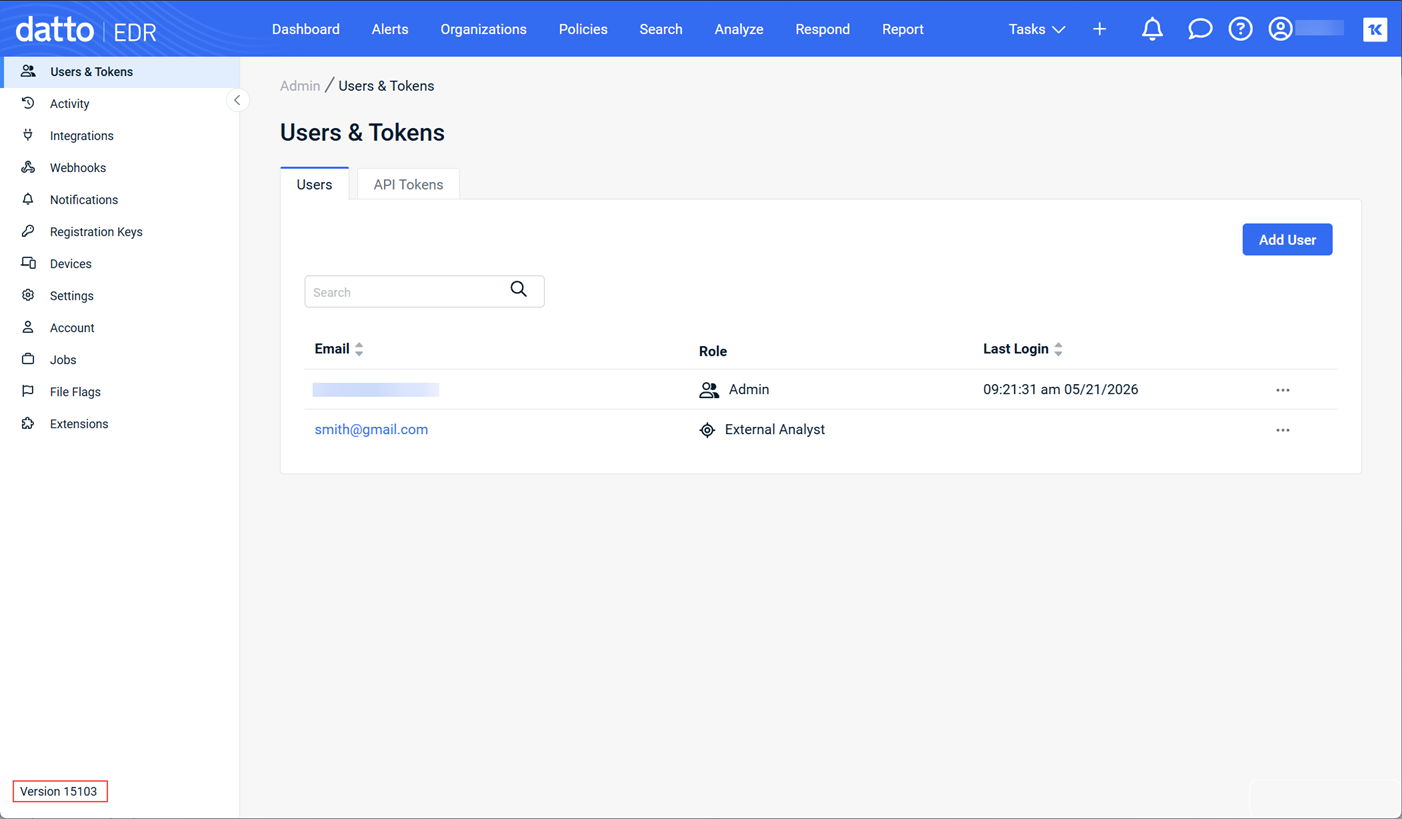
- To view the release notes for your version, see Datto EDR & AV release notes.
Confirm and update your maintenance window
View the scheduled maintenance window for your tenant and, if needed, modify it to a more suitable time.
- In the top navigation bar, select > Admin
- In the left navigation panel, select Account.
- On the Account Information page, locate the Tenant Information section.
- The Preferred Maintenance Window field displays the currently scheduled upgrade time frame for your tenant.
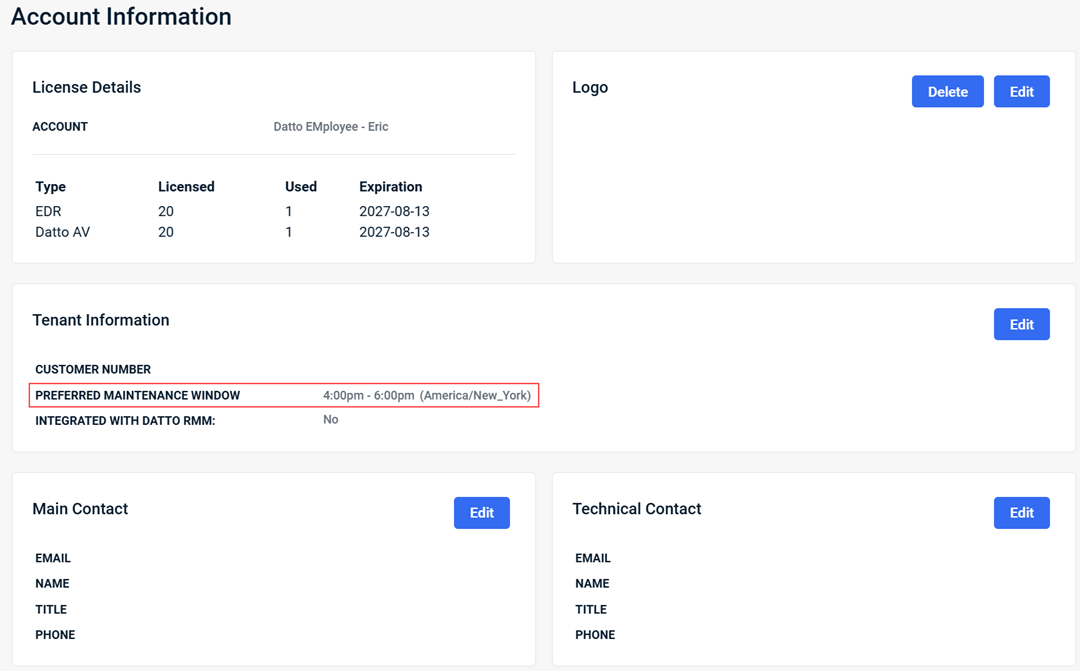
- To change the maintenance window, in the upper-right corner of the Tenant Information section, click Edit and update the schedule.


