Removing Windows Defender when installing Datto AV
Having both the Datto AV and Windows Defender antivirus products installed on the same endpoint can cause performance issues. Therefore, when installing Datto AV on an endpoint, it is required that Windows Defender is disabled on the endpoint.
Fortunately, when installing Datto AV on a workstation, Windows Defender is disabled automatically. When installing Datto AV on Windows Server, Windows Defender should be uninstalled automatically. If the Datto AV agent is not able to uninstall Windows Defender, you will need to do so manually, as explained in this article.
The table below describes the Microsoft Defender Antivirus state for each Windows version when a non-Microsoft antivirus solution, like Datto AV, is installed.
| Windows version | Microsoft Defender Antivirus state |
|---|---|
| Windows 10 Windows 11 |
Disabled automatically. |
| Windows Server 2025
Windows Server 2022 Windows Server 2019 Windows Server, version 1803, or newer Windows Server 2016 |
Should uninstall automatically. If not, uninstall manually per the options explained below. |
NOTE If Datto AV is unable to install due to an active Windows Defender on the endpoint, a notification is displayed with the 10600005 or 10615609 error codes.
NOTE On workstations, if Datto AV expires, is uninstalled, or otherwise stops providing real-time protection, Windows Defender will be re-enabled automatically.
IMPORTANT If you need to remove Datto AV from Windows Server, Windows Defender is not automatically re-enabled. You will need to re-enable it. See Enable and update Defender Antivirus to the latest version on Windows Server.
Disabling Windows Defender on Windows Server manually
This section includes the steps for disabling Windows Defender via the server's UI or by using a PowerShell command.
Disabling Windows Defender via the server's UI
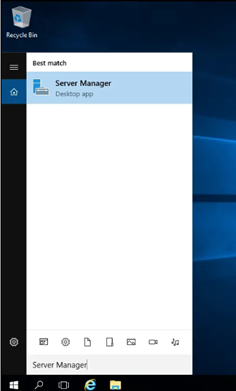
- In the Windows Server application, search for Server Manager.
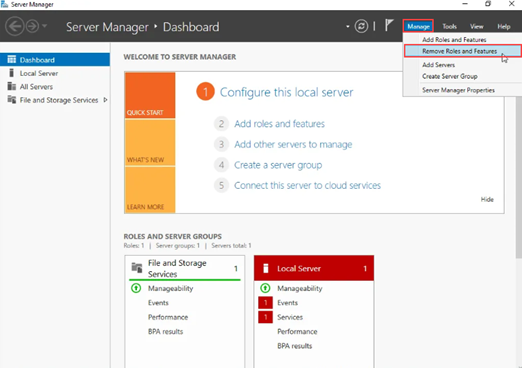
- On the right side of the top navigation bar, select Manage > Remove Roles and Features.
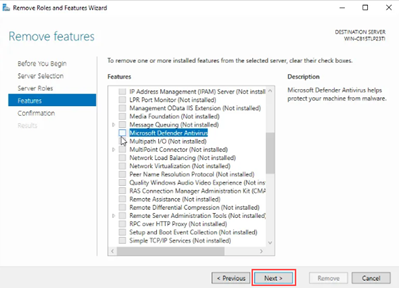
- Click the Next button until Features is selected in the left navigation pane.
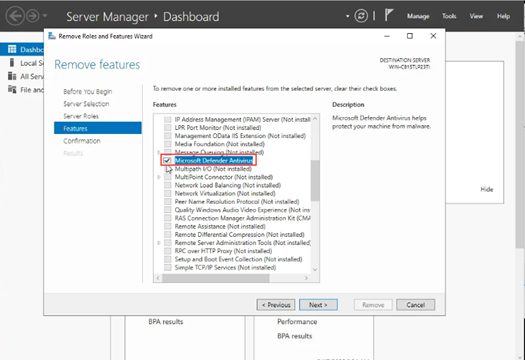
- In the Features list, clear the check box for Microsoft Defender Antivirus.
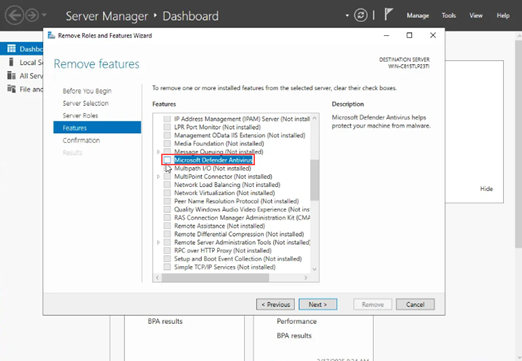
NOTE On some Server versions, like Server 2016, the feature is listed as Windows Defender Features.
- Click the Next button.
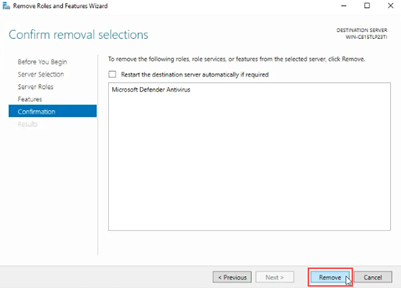
- On the Confirmation page, click the Remove button.
Disabling Windows Defender via a Powershell command
You can run the following Powershell command to disable Windows Defender.
Import-Module servermanager; Uninstall-WindowsFeature -Name Windows-Defender | Select-Object Success,RestartNeeded,ExitCode | Format-List
IMPORTANT If performing the steps above does not disable Windows Defender on the Windows server, you will need to contact Microsoft Support as Kaseya support will not be able to assist.
NOTE For more information about Windows Defender compatibility, see the article Microsoft Defender Antivirus compatibility with other security products.
Verifying Windows Defender is disabled
Windows workstations
On a Windows workstation, run the following command in PowerShell to retrieve the current operational status of Microsoft Defender.
PS C:\Windows\system32> get-mpcomputerstatus
The command returns detailed status information for Microsoft Defender. Review the output to confirm whether Microsoft Defender is disabled.
Key fields to review include:
-
AMEngineVersion : 0.0.0.0
Means service is off. -
AMRunningMode : Not running
Microsoft Defender is not running. -
AntivirusEnabled : False
Microsoft Defender is not enabled.
AMEngineVersion : 0.0.0.0
AMProductVersion : 4.18.26020.6
AMRunningMode : Not running
AMServiceEnabled : False
AMServiceVersion : 0.0.0.0
AntispywareEnabled : False
AntispywareSignatureAge : 0
AntispywareSignatureLastUpdated :
AntispywareSignatureVersion :
AntivirusEnabled : False
AntivirusSignatureAge : 65535
AntivirusSignatureLastUpdated :
AntivirusSignatureVersion :
BehaviorMonitorEnabled : False
ComputerID : 059CABE0-070D-4573-828A-3F8905322D4D
ComputerState : 0
ControlledConfigurationState : 0
DefenderSignaturesOutOfDate : False
DeviceControlDefaultEnforcement : Unknown
DeviceControlPoliciesLastUpdated : 12/31/1600 4:00:00 PM
DeviceControlState : Unknown
FullScanAge : 4294967295
FullScanEndTime :
FullScanOverdue : False
FullScanRequired : False
FullScanSignatureVersion :
FullScanStartTime :
InitializationProgress : ServiceStartedSuccessfully
IoavProtectionEnabled : False
IsTamperProtected : False
IsVirtualMachine : True
LastFullScanSource : 0
LastQuickScanSource : 0
NISEnabled : False
NISEngineVersion : 0.0.0.0
NISSignatureAge : 65535
NISSignatureLastUpdated :
NISSignatureVersion :
OnAccessProtectionEnabled : False
ProductStatus : 1
QuickScanAge : 4294967295
QuickScanEndTime :
QuickScanOverdue : False
QuickScanSignatureVersion :
QuickScanStartTime :
RealTimeProtectionEnabled : False
RealTimeScanDirection : 0
RebootRequired : False
SmartAppControlExpiration :
SmartAppControlState :
TamperProtectionSource : Signatures
TroubleShootingDailyMaxQuota :
TroubleShootingDailyQuotaLeft :
TroubleShootingEndTime :
TroubleShootingExpirationLeft :
TroubleShootingMode :
TroubleShootingModeSource :
TroubleShootingQuotaResetTime :
TroubleShootingStartTime :
PSComputerName :
Windows Server
On a Windows Server device, run the following command in PowerShell to retrieve the current operational status of Microsoft Defender.
PS C:\Users\Administrator> get-windowsfeature *Defender*
The command returns detailed status information for Microsoft Defender.
Display Name Name Install State
------------ ---- -------------
[ ] Microsoft Defender Antivirus Windows-Defender Available
In the Display Name field, empty brackets ([ ]) indicate that Microsoft Defender is not installed. An Install State of Available also indicates that Microsoft Defender is not installed.
| Revision | Date |
|---|---|
| Added section: Verifying Windows Defender is disabled. | 3/31/26 |
| Added Important: If you need to remove Datto AV from Windows Server, Windows Defender is not automatically re-enabled. You will need to re-enable it. | 4/16/26 |


