Deploying the Endpoint User Interface
IMPORTANT We strongly recommend that you review the Endpoint User Interface documentation in full and conduct internal testing before rollout. This will help ensure feature understanding and minimize end-customer inquiries.
NOTE This feature is currently available in Beta, meaning it is fully functional but released in an early phase to support ongoing enhancements.
NOTE Please submit feedback using the in-product redirect to the Ideas Portal. Your input helps us improve this feature.
Endpoint User Interface
The Datto Endpoint User Interface provides end users with real-time visibility into their device’s security status and the ability to initiate key security actions directly from their desktop.
MSPs can now offer their customers a simple, intuitive way to:
- Check device security status instantly.
- Run antivirus scans (Quick or Full) on demand.
- Review quarantined files and scan history directly from the device.
This feature is delivered through a system tray icon and desktop interface, making security management accessible and effortless.
Requirements
- Supported OS: Windows only (MacOS and Linux not supported)
- Agent version: 3.17.1.4429 or later
- UI version: 12601
- Admin role required: Only EDR Admins can enable or disable this feature
- Reboot required: Devices must reboot after enabling to complete installation
Why It Matters
The benefits of enabling the Endpoint User Interface include the following:
- Empowers end users with control over device security.
- Reduces risk by enabling proactive threat detection.
- Saves time with local visibility—no need to contact support for basic checks.
How It Works
Once enabled by an admin in the Datto EDR platform:
- The Endpoint User Interface is automatically deployed to supported devices.
- Users will see a system tray icon and can open the interface to:
- Start Quick or Full AV scans.
- Monitor scan progress and results.
- View quarantined threats and scan history.
- If threats are detected, users receive real-time notifications and can review details in the interface.
IMPORTANT Quarantined files cannot be restored from the Endpoint User Interface. For more information on restoring quarantined files, refer to the Quarantined Files section of article Navigating the Respond page.
Endpoint User Interface information
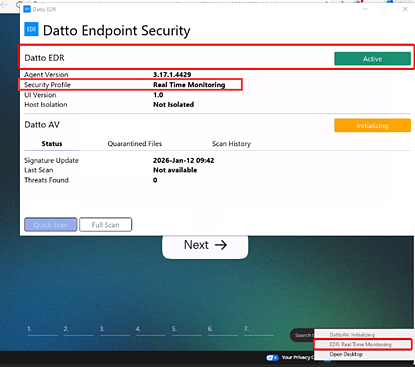
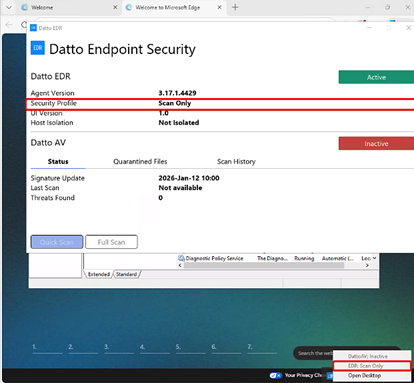
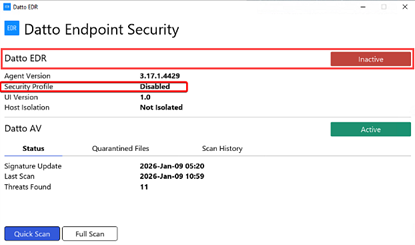
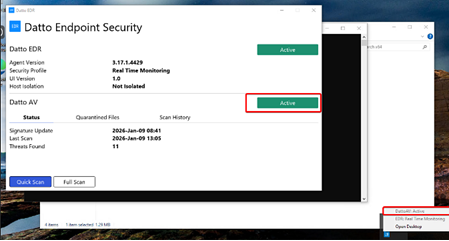
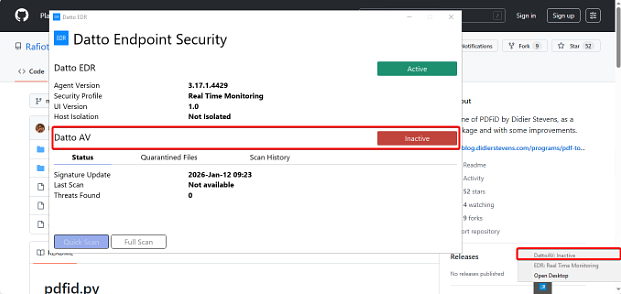
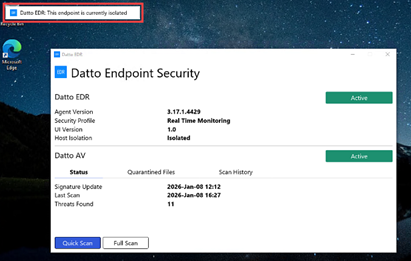
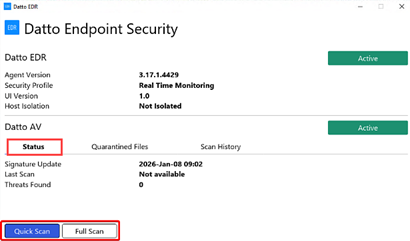
The Endpoint User Interface provides insight into the status of the security services running on the device, displayed in both the Status tab and the system tray icon. The examples below show the different statuses that may appear, along with the configurations associated with each one.
License and policy status
Datto EDR
- Active EDR license with Real Time Monitoring enabled.
- Active EDR license with Scheduled Scans enabled (Real Time Monitoring disabled).
- No EDR license or policy is assigned to the device, or the EDR policy is disabled.
Datto AV
- Active AV license with Protect & Quarantine enabled.
- No EDR license or policy is assigned to the device, or the AV policy is disabled.
Visual indicators and notifications
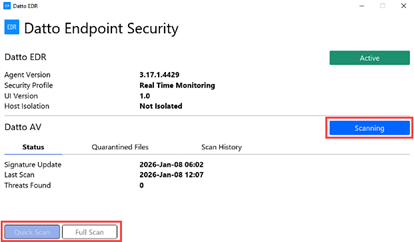
- Datto AV Quick Scan or Full Scan buttons: When either button is clicked and a scan is in progress, the Datto AV license button indicates Scanning.
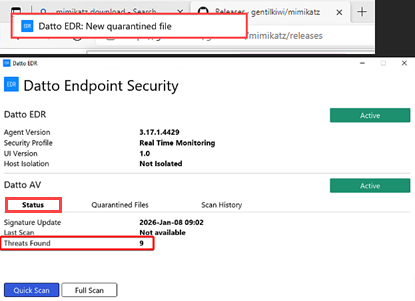
- Datto AV Status tab: If a threat is found, the number of threats is shown on the Status tab and a threat detection banner is displayed.
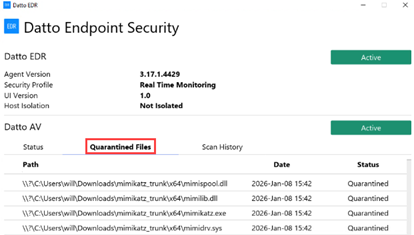
- Datto AV Quarantined Files tab: Shows the file location and date and time the file was quarantined.
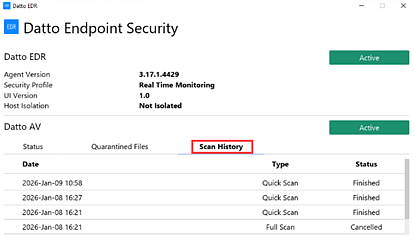
- Datto AV Scan History tab: Lists the date and time, type, and status for each scan.
- Isolation banner: Displayed when a device is isolated by Datto EDR.
- Scan completion banner: Displayed when Datto AV completes a full scan.

Rollout details
- Default state: Disabled for all customers.
- Backward compatibility: Supported only on EDR Agent version 3.17.1.4429+.
- Safe rollback: Admins can disable the feature at the account or organization level.
How to...
To enable the Endpoint User Interface feature, the admin must first enable the feature at the MSP level and then enable it separately for each organization at the organization level.
IMPORTANT If you utilize the Datto RMM/EDR integration, it is recommended that you create individual organizations on which to enable the Endpoint User Interface. This prevents the interface from being enabled for the Default RMM Organization, which serves as the default organization for newly created RMM sites. Follow the steps in the procedure Datto RMM integrations only: Creating your organization structure.
 Datto RMM integrations only: Creating your organization structure
Follow these steps to prepare a client organization in EDR to enable the Endpoint User Interface. Then, complete the remaining procedures in this article.
NOTE These steps are not required for VSA integrations.
Creating the new organization
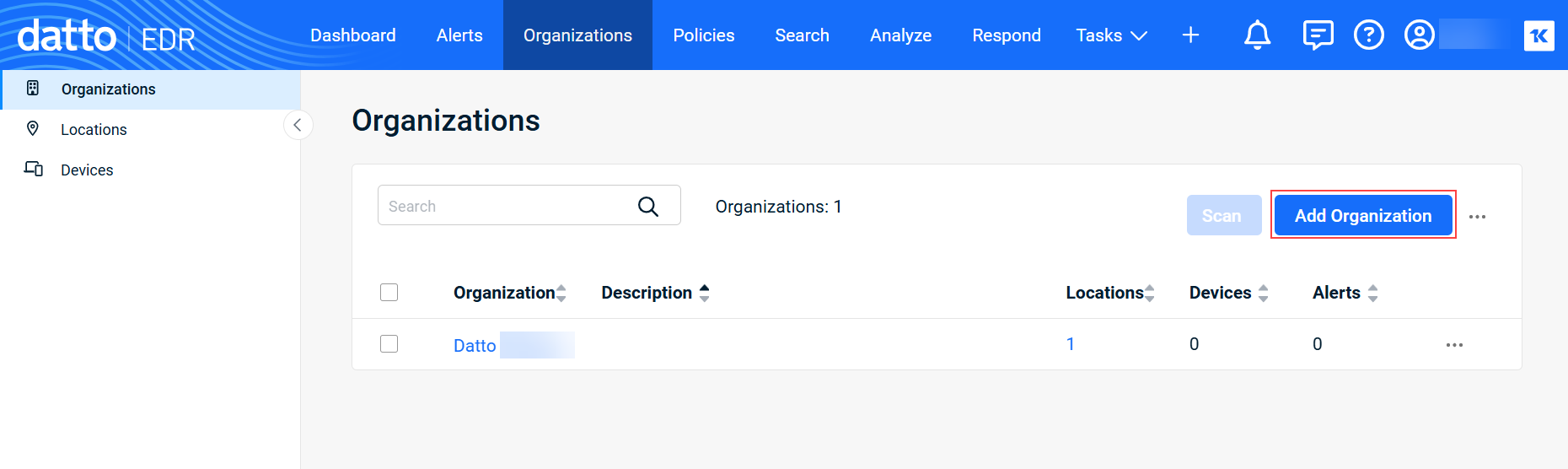
- In the top navigation menu of your instance, click Organizations.
- Click Add Organization.
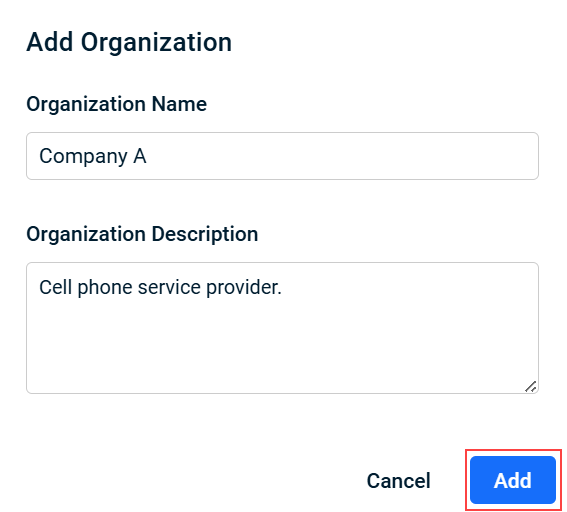
- In the Add Organization modal, complete the following required fields:
- Organization Name: Enter the name of the organization.
- Organization Description: Enter a description of the organization.
- Click Add.
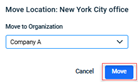
Moving locations to the new organization
- In the top navigation menu of your instance, click Organizations.
- In the left navigation menu, click Locations.
- In the Locations table, select the check box of the location you would like to move.

- In the last column, click the ellipses menu and select Move.

- In the Move to Organization drop-down list, select the new organization.
Enable the Endpoint User Interface feature at the MSP level
- In the top navigation bar, click
 > Admin.
 - In the left navigation menu, select Settings.
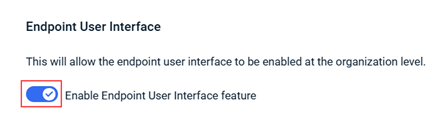
- Scroll to the Endpoint User Interface section.
- Turn on the Enable Endpoint User Interface feature toggle.
Enable the Endpoint User Interface feature for an organization
- On the top navigation bar, click Organizations.
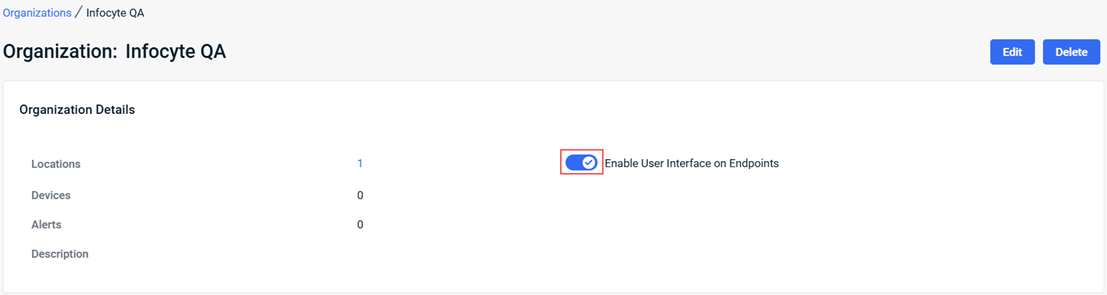
- In the Organizations table, click the desired organization.
- In the Organization Details section, turn on the Enable User Interface on Endpoints toggle.
- To enable the feature for another organization, complete steps 1 through 3.
Confirm it’s working
Check the following to verify the feature is working:
- The system tray icon appears on the endpoint device when the feature is active.
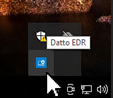
- Click the system tray icon to open the interface.
- In the Datto AV section, the Status tab shows real-time AV status.
- The Quick Scan and Full Scans buttons are active.
| Revision | Date |
|---|---|
| Initial release. | 1/16/26 |
| Added Datto RMM integrations only info. | 2/10/26 |


